This Insurance Policy Register Excel workbook is designed to maintain an agency master register of active, pending, expired, cancelled, and non-renewed policies. It records policy references, named insureds, carriers, lines of business, effective and expiration dates, annual premiums, producers, and service owners.
The XLSX includes 100 preconfigured policy rows, calculated term and expiration fields, row-level review messages, configurable dropdown lists, summary indicators, and a policy-status chart. All included records are fictional, and the workbook is an administrative tool rather than a source of official carrier status, coverage guidance, or external synchronization.
How this workbook can help
- Keeps active and inactive policy records in one structured agency register.
- Helps staff monitor upcoming expirations, active records past expiration, and incomplete entries.
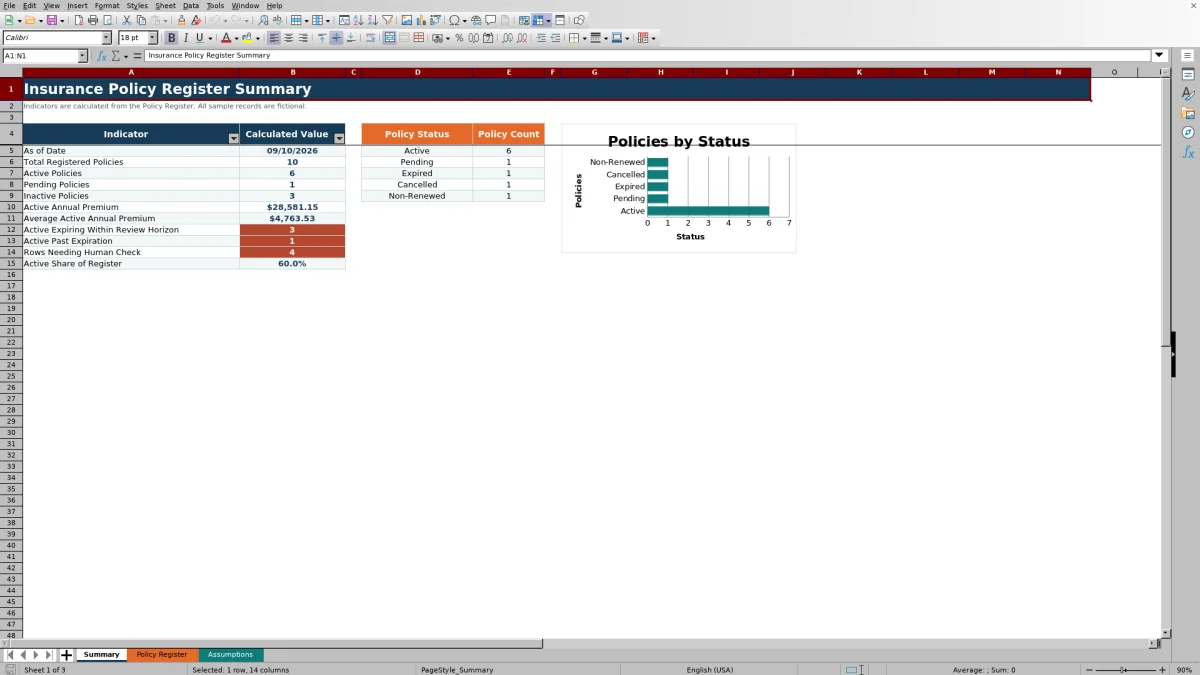
- Summarizes policy counts, active annual premium, average active premium, and active share of the register.
- Promotes consistent data entry through controlled lists for status, line of business, carrier, producer, and service owner.
What is in the file
How to get started
1. Assess the current situation
Review the existing policy records, identify the staff responsible for maintenance, and confirm whether the 100 preconfigured rows are sufficient for the agency's current register.
2. Configure the operating choices
Open the Assumptions sheet and review the expiration horizon and editable lists for policy statuses, lines of business, carriers, producers, and service owners before entering production data.
3. Enter each policy record
Use one row per policy in columns A through J of the Policy Register. Enter the reference, named insured, carrier, line of business, dates, status, annual premium, producer, and service owner while leaving the calculated columns intact.
4. Review the calculated results
Check Term Days, Days to Expiration, and the Register Check column. Filter for messages beginning with Check or Review, then verify missing fields, duplicate references, date order, and expiration conditions against reliable agency records.
5. Interpret the register and make the next decision
Use the Summary sheet to interpret status counts, active premium, upcoming expirations, past-expiration records, and the number of rows needing attention. Decide whether to correct data, begin renewal follow-up, update a status, or confirm information in the agency's system of record.
What the Insurance Policy Register Maintains
The Policy Register stores one administrative policy record per row. Its 13 columns cover the policy reference, client or named insured, carrier, line of business, effective date, expiration date, policy status, annual premium, producer, service owner, term length, days to expiration, and a calculated review message. Status choices shown in the workbook are Active, Pending, Expired, Cancelled, and Non-Renewed.
Controls for Consistent Agency Data
The register uses dropdown validation for carrier, line of business, policy status, producer, and service owner. Effective and expiration dates accept dates from January 1, 2000 through December 31, 2100, while annual premium accepts values from zero through 100,000,000. The Excel table and column filters help operators isolate records by status, carrier, owner, expiration timing, or review message.
Expiration Monitoring and Register Checks
Term Days subtracts the effective date from the expiration date, while Days to Expiration subtracts TODAY() from the expiration date. The default 60-day review horizon is editable on the Assumptions sheet. Register Check formulas identify missing fields, duplicate policy references, expiration dates preceding effective dates, active policies already past expiration, and active policies approaching expiration. Because these calculations depend on the current date and entered data, staff should verify every flagged record manually.
Interpreted Practical Example
Situation: fictional policy FIC-POL-1001 is Active, has a $4,875 annual premium, and runs from October 10, 2025 through October 10, 2026. Action: an operator opens the workbook on August 20, 2026 and reviews the calculated fields. Result: the term is 365 days, the policy has 51 days to expiration, and it falls within the 60-day horizon. Interpretation: the row requires administrative follow-up, and the Summary sheet includes it among active policies expiring within the review horizon. Next decision: the assigned staff member should verify the policy in the agency's authoritative records and decide whether to begin renewal work, correct the dates, or update the status.
Common Errors and Practical Solutions
A missing-field message means at least one cell in columns A through J is blank; complete the record or clear an abandoned row. A duplicate-reference message requires checking whether two rows represent the same policy and correcting the reference or removing the duplicate record. A date-order message requires verifying and correcting the source dates. An active policy past expiration requires confirmation of renewal or a status update. The validated manifest also shows that Carrier currently points to Assumptions B23:B28, which includes Professional Liability, while Line of Business stops at B22 and excludes that value. Before operational use, change the carrier source to B24:B28 and extend the line-of-business source through B23.
Comparison With Alternative Policy-Tracking Methods
The workbook operates as a complete local method: staff configure assumptions, enter policies, review calculated checks, and interpret portfolio indicators in one XLSX. The appropriate option depends on record volume, integration requirements, authority, and available systems.
| Option | Operating method | More suitable when | Primary limitation |
|---|---|---|---|
| Insurance Policy Register Excel workbook | Combines controlled entry, calculated checks, expiration monitoring, summary metrics, and editable lists in one local file. | More suitable when an independent agency needs a structured Excel oversight process for up to 100 preconfigured policy rows. | It does not synchronize with carriers or serve as the official policy record. |
| Blank spreadsheet | Uses manually created columns and formulas without the workbook's preconfigured controls. | More suitable when the agency is still defining its data model or needs a temporary one-off list. | Controls, review logic, and reporting must be designed and maintained manually. |
| CRM or agency management system | Maintains records within a broader platform that may include workflows, permissions, documents, and integrations. | More suitable when synchronized status, multiuser controls, automated workflows, or a formal system of record is required. | Implementation, configuration, access, and cost may be more substantial than a local workbook. |
| Carrier-provided report | Provides a carrier-specific snapshot based on that carrier's records. | More suitable when reconciling policies or status details for one carrier. | It may not provide a unified cross-carrier agency register or consistent ownership fields. |
Operational Limits and Next Decisions
The workbook is preconfigured through row 104, so adding more than 100 policy records requires extending the table, formulas, validations, conditional formatting, and summary ranges. TODAY()-based results change with the computer date, and a blank or unflagged check does not independently establish data accuracy. Agencies should decide who owns updates, how often records are reviewed, where authoritative policy information resides, and when the register should be reconciled with carrier or agency-management records.
Frequently asked questions
Can the Excel workbook track both active and inactive policies?
Yes. The available statuses include Active, Pending, Expired, Cancelled, and Non-Renewed. The Summary sheet combines Expired, Cancelled, and Non-Renewed records in its inactive-policy indicator.
How many policy records are preconfigured?
The Policy Register provides 100 preconfigured data rows from row 5 through row 104. Extending beyond that range requires corresponding changes to formulas, validations, the Excel table, conditional formatting, and summary references.
Does the register identify policies approaching expiration?
Yes. Active policies with expiration dates from today through the editable review-horizon date are counted on the Summary sheet and receive a review message in the register. The initial horizon is 60 calendar days.
Can the dropdown values be customized?
Yes. The Assumptions sheet holds editable values for policy statuses, lines of business, carriers, producers, and service owners. Review the validation ranges before production use because the validated manifest shows a one-row alignment issue between the carrier and line-of-business sources.
Does this Excel policy register replace an agency management system?
No. It is a local administrative register with formulas, validation, filters, and summary reporting. It does not provide external synchronization, official carrier status, automated notifications, coverage advice, or the broader controls of an agency management system.
Editorial responsibility

Maya ChenClient and policy workflows

Ethan BrooksWorkbook structure and formula QA