This Insurance Coverage Review Schedule is an Excel workbook for planning periodic account reviews across client policies. Agency staff can record policy references, expiration dates, review frequencies, recent review dates, assigned owners, workflow statuses, and administrative notes without entering recommended coverage amounts.
The XLSX calculates a next review date, days remaining, and human review prompts from the entered dates and editable assumptions. Its Summary sheet helps operators monitor workload, while the calculated timing alerts indicate which records need attention rather than making a coverage decision.
How this workbook can help
- Keeps account-level policy review dates, ownership, workflow status, and administrative notes in one schedule.
- Identifies past-due, due-soon, planned, completed, and incomplete scheduling records for human follow-up.
- Summarizes review workload and workflow-status counts without recommending coverage types, limits, deductibles, or amounts.
- Allows agency operators to adjust administrative timing assumptions and maintain reusable policy-type, status, and owner lists.
What is in the file
How to get started
1. Review the planning assumptions
Open the Assumptions sheet and confirm the due-soon window, lead time before expiration, and maximum review frequency. The supplied values are 30 days, 45 days, and 36 months, respectively, and they are editable administrative settings.
2. Replace the fictional examples
On Review Schedule, replace the demonstration accounts with authorized agency records. Enter data in the designated yellow input cells, including the review ID, account, policy reference, policy type, relevant dates, frequency, owner, status, and administrative notes.
3. Review the calculated timing fields
Use Next Review Due, Days to Due, and Timing Alert to organize follow-up. Filter or sort by alert, owner, status, or due date, and investigate records displaying Date needed—review or Due window needed—review.
4. Monitor and close the workflow
Use the Summary sheet to check total records, missing statuses, timing categories, completed entries, average days to due, and status counts. After qualified personnel complete the substantive review, update the workflow status and confirm the next review cycle.
Purpose and Scheduling Logic
The workbook supports administrative timing for insurance coverage reviews. If a record has a most recent review date and frequency, the schedule adds the entered number of months. If it has an expiration date and the lead-time setting is available, the schedule subtracts that lead time. When both paths are available, it uses the earlier date as the administrative target. This calculation organizes work; it does not determine whether coverage should change.
Interpreted Practical Example
Situation: the fictional Blue Lantern Bakery record shows a November 25, 2026 policy expiration, a June 3, 2026 most recent review, and a 12-month frequency. Action: the workbook compares June 3, 2027 from the recurring cycle with October 11, 2026 from the expiration date minus the supplied 45-day lead time. Result: October 11, 2026 becomes the earlier planning date. Interpretation: the date is an administrative target for staff attention, not a conclusion about coverage adequacy. Next decision: the assigned owner should verify the source dates, arrange the human review when appropriate, and update the workflow status.
Common Errors and Solutions
A missing Review ID leaves the row's calculated fields blank, so add an agency-controlled identifier before troubleshooting the formulas. A record without an expiration date or a usable combination of most recent review date and frequency displays Date needed—review; supply verified scheduling inputs. A blank due-soon setting produces Due window needed—review; enter an approved value on Assumptions. If an alert appears inconsistent, verify the source data, confirm that Excel recalculated TODAY(), and check whether pasted values bypassed the available validation lists.
Comparison With External Tracking Alternatives
The workbook combines account records, date logic, status tracking, assumptions, alerts, and summary reporting as one operational method. The comparison below distinguishes that method from realistic external alternatives without treating any option as universally preferable.
| Method | Operational approach | More suitable when | Limitation to consider |
|---|---|---|---|
| Insurance Coverage Review Schedule Excel workbook | Uses a structured schedule, formulas, editable assumptions, validation rules, timing alerts, and a summary view. | More suitable when an agency needs a portable, file-based process for up to 100 review records. | Requires controlled file handling, accurate manual entry, and human follow-up. |
| Paper or manual calendar | Records dates and assignments without automatic calculations or consolidated status reporting. | More suitable when record volume is very small and staff follow a tightly controlled manual routine. | Updates, reassignment, filtering, and oversight can require repeated manual work. |
| Blank spreadsheet | Provides open rows and columns that staff design and maintain themselves. | More suitable when the agency needs a highly customized structure and can build its own formulas and controls. | It does not begin with this workbook's validated fields, alert logic, assumptions, or dashboard. |
| CRM or agency management system | May connect review tasks with broader account, communication, and user-permission workflows. | More suitable when centralized multiuser activity, integrations, and system audit controls are required. | Configuration, licensing, permissions, and available scheduling logic depend on the selected system. |
| Carrier-provided report | Reflects information available from a particular carrier or reporting source. | More suitable when staff need to reconcile carrier-specific expiration or policy data. | It may not provide an agency-wide review workflow across multiple carriers and accounts. |
Reading Timing Alerts
Past due—review means the calculated date is earlier than today. Due soon—review means it falls within the editable due-soon window, while Planned means it is beyond that window. Date needed—review identifies an insufficient date path, and Due window needed—review identifies a missing due-soon setting. Completed—confirm next cycle keeps a completed record visible for the next scheduling decision.
Using the Summary for Workload Decisions
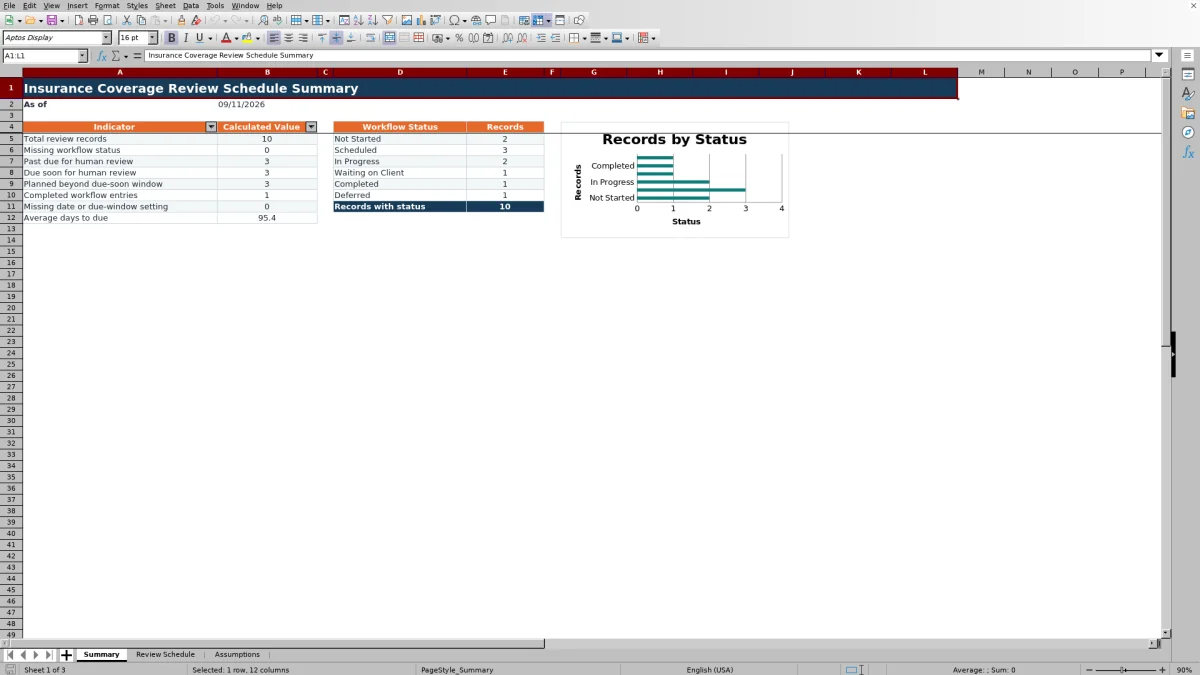
The Summary sheet reports total review records, missing workflow statuses, past-due prompts, due-soon prompts, planned records, completed entries, missing scheduling settings, and average days to due. It also counts records across Not Started, Scheduled, In Progress, Waiting on Client, Completed, and Deferred statuses. Operators can use these indicators to decide which records need assignment, data correction, scheduling, or status updates.
Administrative Boundaries and Review Control
The schedule does not recommend policy types, limits, deductibles, endorsements, coverage amounts, or coverage changes. Dates and alerts depend on the information entered, the editable assumptions, TODAY(), and Excel recalculation. Agency personnel should validate source records, protect client information, apply internal procedures, and refer substantive coverage questions to appropriately qualified professionals.
Frequently asked questions
Does this Excel workbook recommend insurance coverage amounts?
No. It schedules administrative review activity and displays timing prompts, but it does not recommend coverage types, limits, deductibles, endorsements, amounts, or policy changes.
What information is needed to calculate the next review date?
The workbook needs a Review ID plus either a policy expiration date with an available lead-time setting, or a most recent review date with a review frequency. When both calculation paths are available, it uses the earlier administrative date.
Can the review timing settings be changed?
Yes. The Assumptions sheet contains editable values for the due-soon window, lead time before expiration, and maximum review frequency. Changes can affect calculated dates, available frequency entries, alerts, and summary results.
Why does a record display Date needed—review?
This alert appears when the row has a Review ID but lacks enough date information to calculate a next review date. Verify the expiration date or provide both the most recent review date and review frequency.
How many review records can the schedule hold?
The Review Schedule provides 100 prepared record rows, from row 5 through row 104, with formulas already present in the three calculated columns.
Editorial responsibility

Maya ChenClient and policy workflows

Ethan BrooksWorkbook structure and formula QA