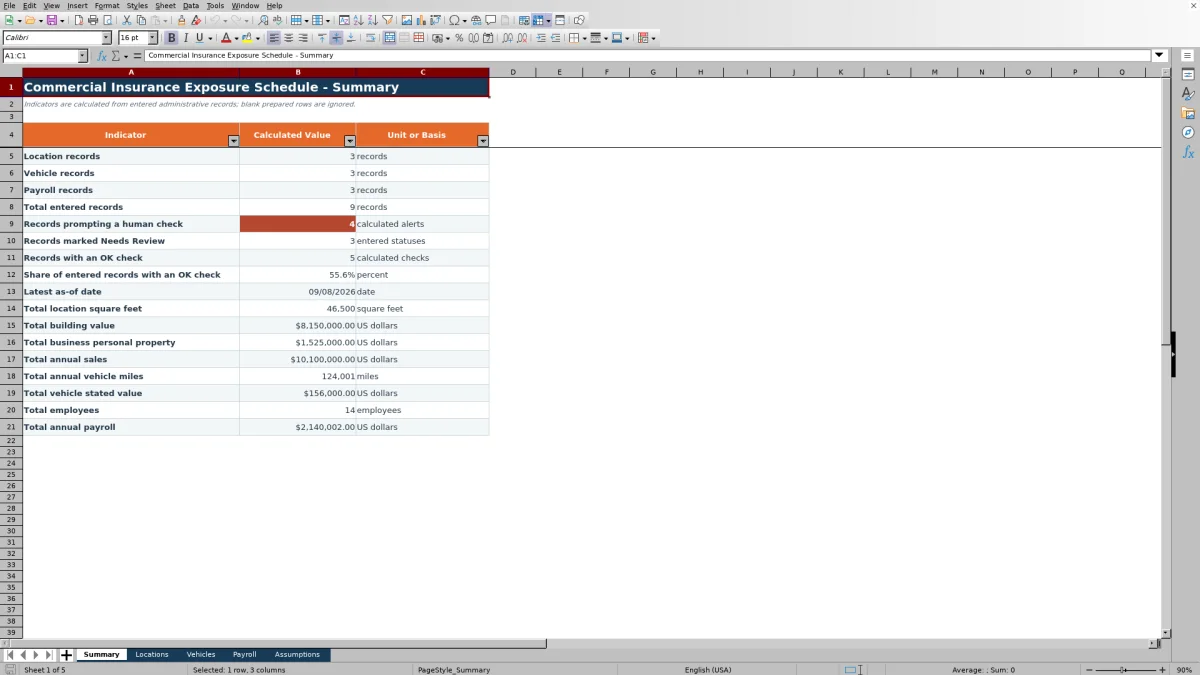
This commercial insurance exposure schedule is an Excel workbook for organizing client-supplied location, vehicle, and payroll records in separate, consistent schedules. It also consolidates record counts, as-of dates, review indicators, and major exposure totals on a Summary sheet.
Prepared entry rows, validation controls, configurable assumptions, and calculated checks help agency staff identify incomplete, stale, or threshold-triggering records for human review. The checks support administrative quality control; they do not verify client data or make underwriting or coverage decisions.
How this workbook can help
- Keeps location, vehicle, and payroll exposure records in dedicated schedules while retaining policy references and record ownership details.
- Surfaces missing fields, future or stale dates, selected high-value indicators, and records explicitly marked Needs Review.
- Consolidates record counts, check results, latest as-of date, and major exposure totals for an agency-level review.
- Lets operators adjust administrative thresholds, acceptable dates, statuses, owners, and state lists as procedures change.
What is in the file
How to get started
1. Review the controls
Open the Assumptions sheet and confirm the stale-record limit, annual-mileage threshold, payroll-per-employee threshold, model-year range, acceptable date range, statuses, owners, and state list.
2. Enter the supplied records
Replace the fictional examples on Locations, Vehicles, and Payroll. Use consistent policy references and location IDs, complete the editable fields, and leave calculated columns unchanged.
3. Resolve calculated checks
Filter the Record Check column for results beginning with “Check.” Confirm missing fields, dates, annual miles, payroll per employee, or status with the appropriate source before changing the record.
4. Review the result and decide
Use Summary to inspect entered-record counts, alerts, OK results, the latest as-of date, and aggregate exposure values. Interpret those figures as an administrative snapshot, then decide which unresolved records require client follow-up or internal review.
Situation: Exposure Records Arrive in Different Forms
Commercial insurance clients may provide premises values, vehicle details, and payroll records at different times or in different source files. Without a common structure, an agency operator can miss an as-of date, use an inconsistent policy reference, or overlook a record still awaiting review. This workbook creates one current exposure picture while preserving separate schedules for each exposure category.
Action: Standardize Entry and Review
Enter location records with square footage, building value, business personal property, and annual sales. Enter vehicle records with model year, identifier, garaging location, use, annual miles, and stated value. Enter payroll records by state, class code, work description, employee count, and annual payroll. Validation controls restrict applicable dates, numeric fields, states, owners, and statuses, while calculated columns apply the configured administrative checks.
Errors and Solutions During Data Entry
A “Check required fields” result means one or more expected fields are blank or an employee count or payroll value does not meet the formula conditions; return to the source record and complete or correct the entry. “Check future date” calls for confirmation that the as-of date was entered correctly. “Check as-of date” means the record is older than the configured stale-record age, so request an updated record or document why the date remains appropriate. A mileage or payroll-per-employee alert means the value exceeds its review threshold; verify the source rather than changing the limit solely to clear the alert. “Check status” means the entered status remains Needs Review and should only be updated after the review is completed.
Comparison With External Record-Keeping Alternatives
The workbook is one complete operational method for collecting structured exposure records, applying visible administrative controls, and reviewing consolidated totals. Other methods may be more suitable when their operating conditions match the agency’s needs.
| Method | More suitable when | Operational trade-off |
|---|---|---|
| This Excel workbook | An agency needs a portable schedule for locations, vehicles, and payroll with prepared validations, calculated checks, and summary totals. | Staff must maintain the file, confirm source information, and control versions outside a central system. |
| Blank spreadsheet | The required fields vary substantially for a one-time project and the operator needs unrestricted layout control. | Checks, lists, formulas, and summary logic must be designed and tested manually. |
| CRM or agency management system | The agency needs centralized records, permissions, workflow history, integrations, or multiuser activity in a system of record. | Configuration, licensing, and available exposure fields depend on the selected platform. |
| Carrier-provided report | The immediate task is to review a carrier-specific snapshot in that carrier’s required format. | It may not combine exposure categories or support a consistent cross-carrier agency process. |
The appropriate choice depends on whether portability, flexible intake, centralized workflow, or carrier-specific reporting is the primary requirement.
Result: A Consolidated Administrative View
Summary counts entered location, vehicle, and payroll records by populated record ID. It also reports calculated alerts, Needs Review statuses, OK checks, the share of entered records with an OK check, and the latest as-of date. Exposure totals include square feet, building value, business personal property, annual sales, annual vehicle miles, vehicle stated value, employees, and annual payroll.
Interpretation: Practical Vehicle Example
Situation: an operator receives a complete vehicle record showing 50,001 annual miles. Action: the operator enters all required fields, uses an acceptable as-of date, and selects a status other than Needs Review. Result: with the default annual-mileage threshold of 50,000, the calculated result is “Check annual miles.” Interpretation: the value is one mile above the configured limit, so the message is a review prompt rather than proof of an error or an underwriting conclusion. Next decision: confirm the mileage with the client or source document, retain the value if accurate, and route the record for any required internal follow-up.
Next Decision: Move From Checks to Follow-Up
After reviewing Summary, filter each exposure sheet for calculated results beginning with “Check” and assign follow-up through the Record Owner field. Decide whether each item requires corrected data, a newer as-of date, confirmation of an unusual value, or completion of an internal status review. An OK result means the configured checks found none of their listed conditions; it does not establish that the client information is complete, accurate, or appropriate for coverage.
Frequently asked questions
What records does this commercial insurance exposure schedule organize?
It organizes client-supplied location, vehicle, and payroll records. The schedules include identifying information, policy references, as-of dates, exposure values, record owners, statuses, and calculated review results.
How many records can each exposure sheet hold?
The Locations, Vehicles, and Payroll sheets each contain 100 prepared record rows, running from row 5 through row 104.
What does an OK Record Check mean?
OK means the configured formula did not identify a missing required field, future or stale date, applicable threshold condition, or Needs Review status. It does not independently verify the entered information.
Can the review thresholds be changed?
Yes. The Assumptions sheet contains editable values for stale-record age, annual vehicle miles, payroll per employee, vehicle model years, and acceptable as-of dates. Changes should follow the agency’s established procedures.
Why can a check result change on a later date?
The date checks use Excel’s TODAY() function. A record can become older than the configured stale-record age when the workbook recalculates, even if the entered as-of date has not changed.
Editorial responsibility

Maya ChenClient and policy workflows

Ethan BrooksWorkbook structure and formula QA