This Excel workbook helps independent insurance agency teams organize existing and proposed policy facts side by side. For as many as 100 comparison records, users can enter policy references, carriers, dates, annual premiums, primary limits, primary deductibles, ownership, status, and documentation notes.
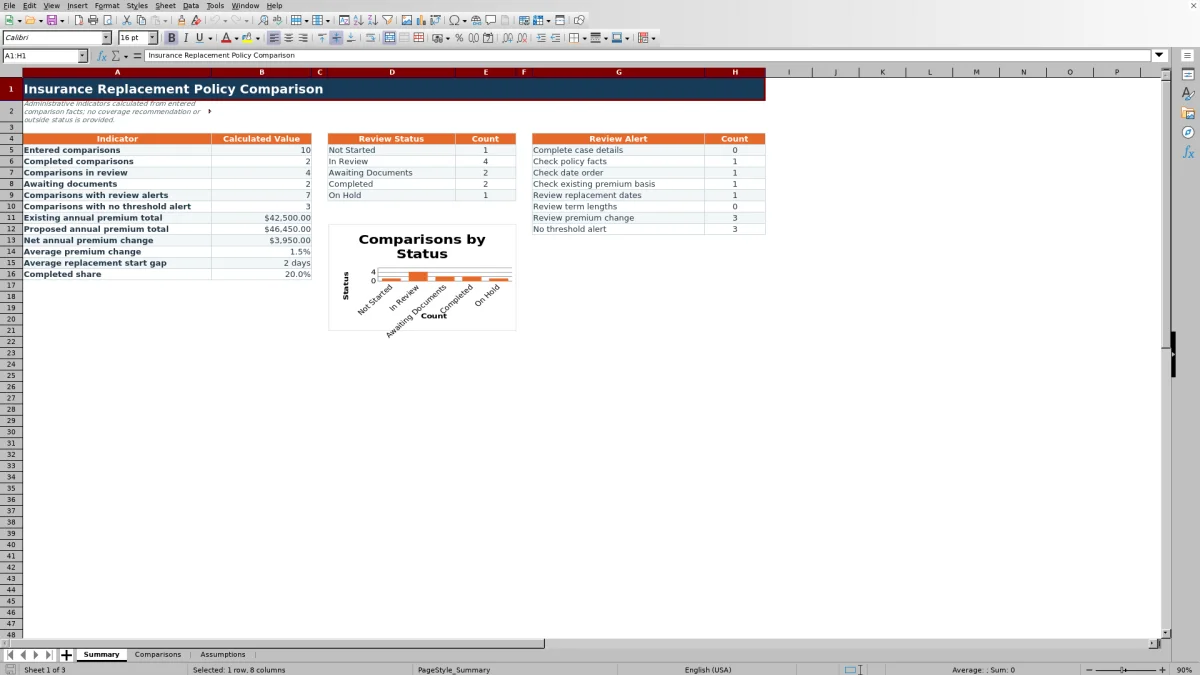
Formulas calculate financial and date differences, while the Summary sheet reports workload, status, alerts, totals, averages, and completion share. The XLSX supports documented human review; it does not evaluate policy wording, exclusions, endorsements, carrier quality, legal requirements, or coverage suitability.
How this workbook can help
- Keeps existing and proposed policy facts together in a consistent comparison record.
- Calculates premium, limit, deductible, replacement-date, and policy-term differences.
- Helps agency teams track ownership, review status, alerts, and documentation notes.
- Summarizes comparison volume, workflow progress, alerts, premium totals, averages, and completion share.
What is in the file
How to get started
1. Review the assumptions
Open the Assumptions sheet before entering cases. Confirm the workflow thresholds for material premium change, replacement start gaps, and term-length differences, along with the accepted date and policy-amount boundaries.
2. Create the comparison record
On the Comparisons sheet, enter a unique comparison ID, account, policy type, review date, owner, and review status. The workbook provides validation lists for policy type, owner, and status.
3. Enter both sets of policy facts
Record the policy reference, carrier, effective date, expiration date, annual premium, primary limit, and primary deductible for both the existing and proposed policies. Enter facts from the relevant policy documents rather than estimates.
4. Review and document the outcome
Read the calculated differences and the Review Alert, verify the underlying entries, and record the agency's findings in Documentation Notes. Update the review status as the case moves through the agency's process.
Situation: Policy replacement facts arrive from different sources
An agency reviewing a proposed replacement may need to reconcile declarations, quotes, renewal records, emails, and internal assignments. Without a consistent record, it can be difficult to see whether the proposed effective date aligns with the existing expiration date, how the annual premium changes, or whether primary limits and deductibles differ. This workbook creates one administrative record for those entered facts while leaving coverage analysis and the replacement decision to qualified reviewers.
Action: Enter the existing and proposed policy facts
Each row starts with a comparison ID, account, policy type, review date, owner, and status. The agency then enters matching facts for the existing and proposed policies: policy references, carriers, effective and expiration dates, annual premiums, primary limits, and primary deductibles. Yellow entry cells distinguish user-maintained information, and validation rules help keep selected fields within the workbook's configured lists and boundaries.
Result: Review calculated differences and workflow indicators
The comparison row calculates the premium change in dollars and percentage, changes in the primary limit and deductible, the gap between the existing expiration and proposed effective date, each policy's term length, and the term-length difference. A formula-driven alert can identify incomplete case details, missing policy facts, reversed dates, an invalid existing-premium basis, or a threshold-based issue. The Summary sheet then aggregates statuses, alerts, premium totals, average changes, average replacement start gap, and completed share.
Interpretation: A practical comparison example
In the fictional sample for Blue Lantern Bakery LLC, the existing annual premium is $5,000 and the proposed annual premium is $5,500. The result is a $500 premium increase, or 10%. The existing policy expires on October 1, 2026, and the proposed policy begins on the same date, so the calculated replacement start gap is zero days. The entered primary limit and deductible are unchanged. Because the default material premium-change threshold is 10%, the increase calls for administrative review under the configured assumption; it does not establish that the proposed policy should be accepted or rejected.
Next decision: Document what the agency needs to verify
After interpreting the calculations, the reviewer can verify the amounts and dates against the relevant documents, investigate any flagged change, and record findings in Documentation Notes. The next operational decision may be to complete the comparison, keep it in review, request missing documents, or place it on hold. A coverage or replacement recommendation should rely on the full policy language and the agency's applicable review procedures, not on the workbook's numeric comparisons alone.
Comparison: Excel workbook and external alternatives
This workbook is a complete operational method for structured entry, side-by-side calculations, workflow alerts, documentation, and summary reporting. External methods may still be more suitable when their particular conditions apply.
| Method | What it provides | More suitable when | Tradeoff |
|---|---|---|---|
| Insurance replacement comparison Excel workbook | Standardized policy-fact entry, calculated differences, editable thresholds, review alerts, documentation notes, and summary metrics in one XLSX. | More suitable when an agency needs a portable, repeatable comparison process for up to 100 records without implementing another system. | Users must maintain the file, control access, and verify all entries against source material. |
| Paper or manual checklist | A simple record that can be used without spreadsheet software. | More suitable when the agency has a very small case volume or must work in an offline paper-based process. | Calculations, aggregation, filtering, and status reporting generally require separate manual work. |
| Blank spreadsheet | Flexible cells that staff can arrange for an unusual or one-time comparison. | More suitable when the required fields differ substantially from this workbook and no repeatable structure is needed. | Formulas, validations, alerts, documentation fields, and summary reporting must be designed and maintained by the user. |
| CRM or agency management system | Centralized client records, permissions, activity history, and integration with broader agency workflows when configured. | More suitable when the agency needs multiuser controls, system integrations, automated assignments, or permanent record retention. | Configuration, licensing, permissions, and implementation may be required, and the system may not provide this exact comparison layout. |
| Carrier-provided report | Carrier-specific quote or policy information in the carrier's selected format. | More suitable when the review concerns one carrier and the report contains every fact the agency needs. | Formats can vary by carrier and may not support cross-carrier workflow tracking or agency-defined thresholds. |
Common entry errors and practical solutions
A blank comparison ID prevents the row from being counted as an entered comparison, so assign a unique ID before relying on Summary totals. Missing account, policy type, review date, owner, or status can produce a Complete case details alert; complete those fields from agency records. Missing existing or proposed facts can produce a Check policy facts alert; return to the source documents and fill the applicable cells. An expiration date before its effective date produces a date-order concern, while a zero or negative existing premium can prevent a meaningful percentage calculation. Correct the source entry when it is wrong, or document the verified circumstance instead of changing a valid fact merely to clear an alert.
Frequently asked questions
What policy facts does the Excel workbook compare?
It compares existing and proposed policy references, carriers, effective dates, expiration dates, annual premiums, primary limits, and primary deductibles. It also records the account, policy type, review date, owner, status, and documentation notes.
Does the workbook recommend whether a policy should be replaced?
No. Its formulas support administrative review of entered facts and thresholds. They do not assess policy language, exclusions, endorsements, insurer quality, legal requirements, or overall coverage suitability.
How many comparison records can the workbook hold?
The Comparisons sheet provides 100 entry rows, from row 7 through row 106. The formulas, validations, filters, and Summary calculations reference that range.
Can an agency change the review thresholds?
Yes. The Assumptions sheet contains editable values for the material premium-change threshold, replacement start-gap tolerance, and term-length difference tolerance. It also stores accepted date and policy-amount boundaries.
What can cause a review alert?
Alerts can result from incomplete case details, missing policy facts, invalid date order, an unsuitable existing-premium basis for percentage calculation, or premium, replacement-date, and term-length differences that cross the configured workflow thresholds. A no-threshold-alert result still requires the reviewer to confirm the entered facts and complete the agency's normal review.
Editorial responsibility

Maya ChenClient and policy workflows

Ethan BrooksWorkbook structure and formula QA