This insurance binder status tracker is an Excel workbook for independent insurance agencies that need to monitor temporary binder issuance, expiration, follow-up, cancellation, and replacement by policy. It provides space for 200 binder records and keeps account, carrier, assignment, key dates, next action, and notes in one operational view.
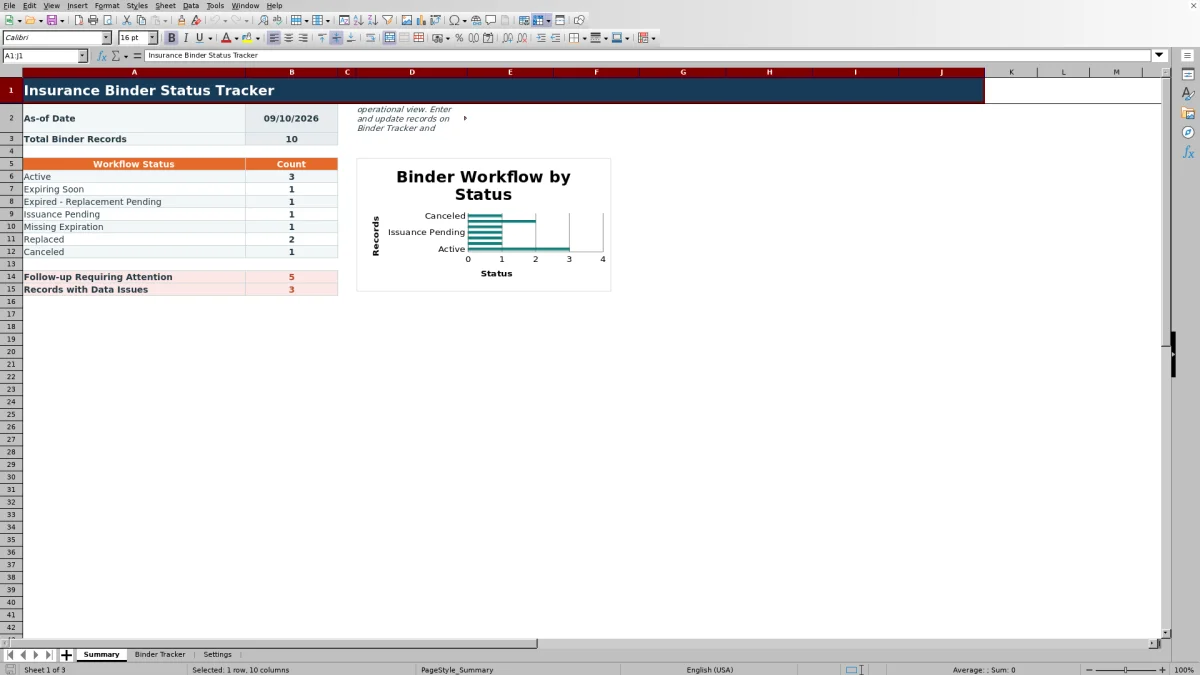
Formula-driven columns classify each record, calculate applicable days to expiration, flag follow-up timing, and identify data issues. A Summary sheet counts records by workflow status and highlights follow-ups requiring attention, while the Settings sheet controls the reporting date, warning windows, and dropdown lists.
How this workbook can help
- Creates one cross-carrier view of temporary binder requests, issued binders, expiration dates, cancellations, and replacement policy receipt.
- Helps agency staff prioritize issuance-pending, expiring, expired, and follow-up-sensitive records using formula-driven statuses and alerts.
- Separates active work from records already marked replaced or canceled so staff can focus on unresolved binder activity.
- Surfaces missing core information, duplicate binder IDs, and supported date inconsistencies before they interfere with follow-up decisions.
What is in the file
How to get started
1. Set the reporting assumptions
Open Settings and enter the as-of date in B2. Set the expiration warning period from 1 to 90 days in B3 and the follow-up-soon period from 0 to 30 days in B4.
2. Maintain the dropdown lists
Update the Settings lists for lines of business, carriers, assigned queues, and next actions. These lists supply the validated choices used on Binder Tracker.
3. Enter and update binder records
Use columns A through P on Binder Tracker for the binder ID, account, carrier, assignment, request and issuance dates, effective and expiration dates, replacement details, cancellation date, follow-up dates, next action, and notes. Each binder ID should be unique.
4. Review calculated results and act
Read the calculated columns Q through T for workflow status, days to expiration, follow-up alert, and data check. Then use Summary counts and the status chart to identify the records that need issuance confirmation, replacement follow-up, missing-data correction, or closure.
Situation: Temporary Binder Work Needs a Controlled View
A temporary binder can require attention at several points: after the request, before issuance, as expiration approaches, after expiration, and until the replacement policy is received. When those dates and actions are scattered across email, paper notes, or separate carrier portals, an agency operator may have difficulty seeing which record needs attention next. This workbook organizes that situation around one row per binder and one configurable reporting date.
Action: Build and Maintain Each Binder Record
Staff enter the Binder ID, Account Name, Carrier, Line of Business, Assigned To value, and Binder Requested Date, followed by issuance, effective, and expiration dates as information arrives. Replacement Policy Number, Replacement Policy Received Date, Canceled Date, follow-up dates, Next Action, and Notes complete the operational history. Dropdown validation supports consistent entries for carrier, line of business, assigned queue, and next action.
Result: Read Formula-Driven Status and Alerts
The workbook gives precedence to Canceled and Replaced records, then evaluates whether issuance or expiration information is missing. Open issued binders are classified according to the Settings as-of date and expiration warning window. Days to Expiration appears only for eligible open records, while the follow-up formula distinguishes a missing date, an overdue date, a date due today, and a date within the configured follow-up-soon period.
Interpretation: Practical Binder Example
Using the workbook's fictional sample data and an as-of date of September 10, 2026, BI-26002 has an issued date of August 22 and an expiration date of September 20. Because that expiration is within the 14-day warning window, the record is interpreted as Expiring Soon. Its next follow-up date is September 11, which falls within the three-day follow-up-soon window, so the practical result is to request the replacement policy rather than wait for expiration.
BI-26003 expired on September 5 and has no replacement receipt or cancellation date in the sample fields. It is therefore interpreted as expired with replacement pending. Its September 8 follow-up date is already past, indicating that the next decision should be immediate follow-up and an update to the replacement or cancellation fields when documentation arrives.
Errors and Solutions
The Data Check column can identify missing account name, carrier, line of business, assigned queue, or request date, as well as a duplicate Binder ID and supported date-order issues. Correct the source field in columns A through P rather than typing over a formula in columns Q through T. If Excel flags a date entry, confirm that it is a valid date from January 1, 2020, through December 31, 2100. If a dropdown entry is unavailable, add the needed value to the corresponding Settings list and then select it on Binder Tracker. A Missing Expiration status is resolved by entering the documented binder expiration date, while a Follow-up Date Missing alert is resolved by assigning the next follow-up date or marking the record replaced or canceled when appropriate.
Comparison With Manual and System-Based Alternatives
The workbook is one complete operational method: staff maintain binder records, formulas interpret current status, and Summary consolidates counts. The appropriate choice depends on record volume, system access, and how much workflow configuration the agency needs.
| Method | More suitable when | Operational trade-off |
|---|---|---|
| Insurance binder status tracker workbook | More suitable when an agency needs a cross-carrier register for up to 200 records with configurable dates, status formulas, follow-up alerts, and summary counts. | Staff must keep the input fields and Settings date current; the manifest does not indicate integration with another system. |
| Paper or manual checklist | More suitable when only a few binders are open and formula-based warnings or consolidated reporting are unnecessary. | Dates and next actions must be reviewed manually, with no automatic status or expiration calculation. |
| Blank spreadsheet | More suitable when an agency needs a highly customized layout and has staff available to design and maintain its own formulas, validation, and controls. | Status logic, alerts, data checks, and summary reporting must be created and tested separately. |
| CRM or agency management system | More suitable when binder tasks need to be part of a configured, broader account and policy workflow used across the agency. | Available fields, alerts, reports, and implementation effort depend on the specific system and agency configuration. |
| Carrier-provided report | More suitable when staff need source information for one carrier and that report includes the required binder details. | It may not provide a single internal view across carriers, assigned queues, next actions, and agency follow-up dates. |
Next Decision: Turn the Summary Into a Work Queue
Begin with records counted under Follow-up Requiring Attention, then review Expired - Replacement Pending, Issuance Pending, Expiring Soon, and Missing Expiration. Use the assigned queue, next action, and notes to decide who should contact the carrier or update the record. After a replacement policy is received or a binder is canceled, enter the applicable date so the status changes and unnecessary follow-up alerts stop.
Frequently asked questions
What workflow statuses does the insurance binder tracker calculate?
It calculates Active, Expiring Soon, Expired - Replacement Pending, Issuance Pending, Missing Expiration, Replaced, and Canceled. Cancellation takes precedence, followed by replacement receipt, issuance, expiration completeness, and expiration timing.
How are expiration and follow-up warning periods controlled?
Settings B2 contains the as-of date, B3 contains the expiration warning days, and B4 contains the follow-up-soon days. The validated ranges are 1 to 90 days for expiration warnings and 0 to 30 days for follow-up-soon warnings.
When does a binder record become Replaced?
The workflow status becomes Replaced when a Replacement Policy Received Date is entered and no Canceled Date is present. The workbook also provides a separate field for the replacement policy number.
Why might Days to Expiration or Follow-up Alert be blank?
Days to Expiration remains blank when the Binder ID, issued date, or expiration date is missing, or when the record is replaced or canceled. Follow-up Alert remains blank for replaced or canceled records and for open records whose next follow-up date falls outside the configured alert window.
How many records can the workbook track, and are the included examples real?
Binder Tracker provides formula and validation coverage for 200 records in rows 2 through 201. The sample accounts, carriers, policy numbers, and work queues are fictional and are included only for workbook testing.
Editorial responsibility

Maya ChenClient and policy workflows

Ethan BrooksWorkbook structure and formula QA