The Insurance Campaign ROI Calculator is an Excel workbook for independent agency operators who need to compare attributable commission revenue with actual campaign cost. It calculates net return and ROI at campaign and portfolio levels while keeping the underlying campaign and transaction records visible.
Operators enter campaign administration data, record commission transactions against campaign IDs, and select which revenue status counts toward ROI. The workbook includes fictional sample records that can be replaced with agency data; its settings do not provide coverage, legal, tax, or compliance advice.
How this workbook can help
- See whether included commission revenue covers actual campaign spending through calculated net return and ROI.
- Separate revenue that counts toward ROI from pending or reversed amounts by selecting one included revenue status.
- Identify missing costs, zero-cost records with revenue, spending over budget, and ROI below the review threshold.
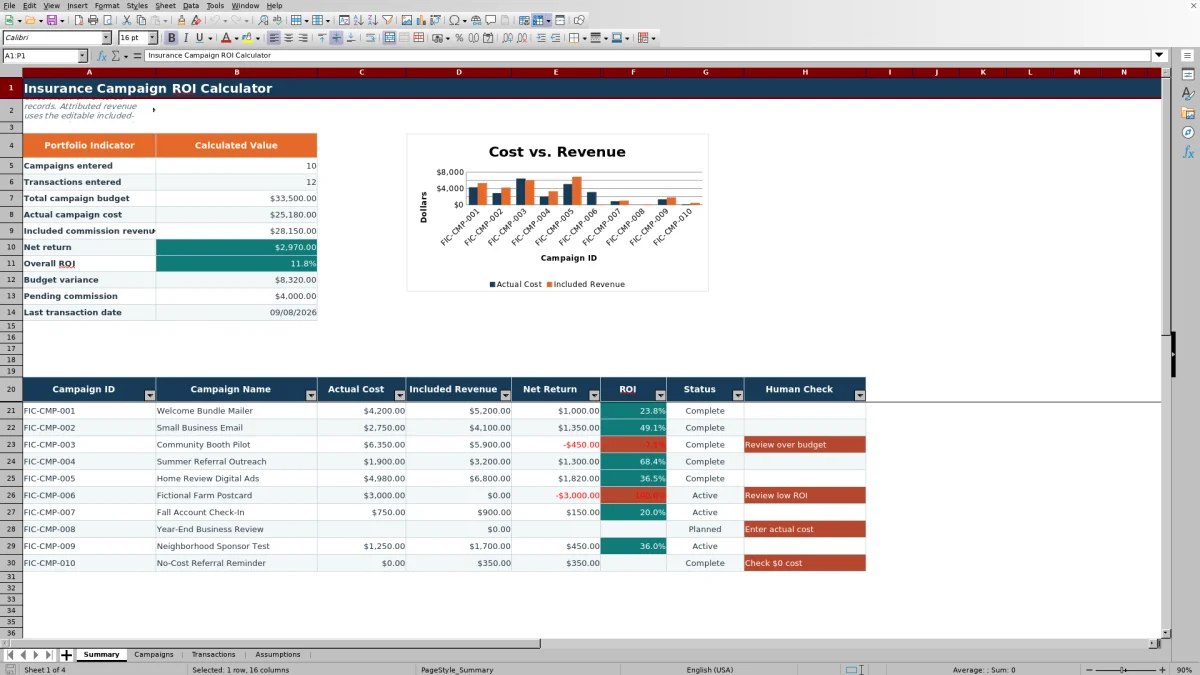
- Review portfolio totals and compare actual cost with included revenue for the first 10 campaign records.
What is in the file
How to get started
1. Review the assumptions
Open Assumptions and confirm the channel, campaign status, revenue status, and owner lists. Set the ROI review threshold and choose the included revenue status; the supplied setting is Received.
2. Enter campaign records
On Campaigns, replace the fictional examples or add records with a unique ID, name, dates, channel, owner, budget, actual cost, and campaign status. The sheet supports up to 100 campaign rows.
3. Record commission transactions
On Transactions, assign every revenue record to an existing Campaign ID. Enter the transaction date, unique revenue reference, policy reference when applicable, description, commission amount, owner, and revenue status.
4. Review results and choose the next action
Check Attributed Revenue, Net Return, ROI, and Human Check on Campaigns. Then use Summary to assess portfolio totals and the chart for the first 10 campaign records before deciding whether to continue, adjust, pause, or investigate a campaign.
Situation: Campaign Spending and Commission Attribution
An agency may know what it spent on direct mail, email, community events, digital advertising, or referral outreach without having a consistent way to connect those costs to commission transactions. This workbook creates a shared method: each campaign has an ID, each commission record is assigned to a campaign ID, and only transactions with the selected revenue status are included in the ROI calculation.
Action: Configure the Revenue Rule and Enter Records
Start with Assumptions because its lists supply the permitted channels, campaign statuses, revenue statuses, and owners used by the entry sheets. The ROI review threshold controls the low-ROI message, while the included revenue status determines which single transaction status is summed. After reviewing those settings, enter campaign costs and matching commission transactions.
Result: Calculated Campaign and Portfolio Performance
For each campaign, Attributed Revenue is the sum of matching commission amounts with the selected included status. Net Return equals included revenue minus actual cost, and ROI equals net return divided by actual cost when cost is greater than zero. Summary aggregates campaign count, transaction count, budget, actual cost, included revenue, net return, overall ROI, budget variance, pending commission, and the last transaction date.
Practical Example: Interpreting a Welcome Campaign
Situation: the fictional Welcome Bundle Mailer has a $4,500 budget and $4,200 actual cost, with one $5,200 Received transaction and one $800 Pending transaction. Action: keep Received as the included status and confirm that both transactions use the campaign's ID. Result: the workbook includes $5,200, calculates a $1,000 net return, and produces a 23.8% ROI; the campaign is also $300 under budget. Interpretation: the included revenue currently exceeds cost, but the $800 pending amount is not part of that ROI. Next decision: verify the pending item separately and decide whether the positive result supports similar outreach or requires more observation.
Interpretation and the Next Operating Decision
A positive ROI means included commission revenue exceeds actual campaign cost under the current status rule; it does not establish that every related policy will remain in force or that pending revenue will be received. A negative ROI indicates that included revenue has not covered actual cost. Operators can combine the calculated result with campaign status, timing, budget variance, and record review to decide whether to continue, adjust, pause, or investigate the campaign.
Common Errors and Solutions
If Attributed Revenue is blank, confirm that the campaign has an ID and that Assumptions contains an included revenue status. If expected revenue is missing, verify that the transaction uses an existing campaign ID and the selected status. Resolve duplicate IDs or revenue references through the validation rules. For messages in Human Check, enter a missing actual cost, examine revenue paired with zero cost, review spending over budget, or investigate ROI below the threshold. Because the formula prioritizes conditions, resolve the displayed issue and recheck the row for another message.
Comparison With Other Campaign ROI Methods
The Excel workbook operates as one method combining campaign administration, transaction attribution, configurable status rules, calculated results, review flags, and portfolio reporting. The alternatives below may be more suitable when their stated conditions apply.
| Method | How attribution is handled | More suitable when | Main consideration |
|---|---|---|---|
| Insurance Campaign ROI Calculator Excel workbook | Matches entered commission transactions to campaign IDs and includes the selected revenue status. | More suitable when an agency needs a transparent, editable campaign-cost and commission-revenue workflow outside a larger system. | Records require consistent IDs, statuses, and manual data maintenance. |
| Paper or manual log | Staff compare campaign notes, invoices, and commission records by hand. | More suitable when campaign volume is very low and calculations are infrequent. | Aggregation, status filtering, and error detection require manual work. |
| Blank spreadsheet | The agency designs its own fields, matching rules, formulas, and controls. | More suitable when the agency needs a structure substantially different from campaign ID and revenue-status attribution. | Formulas, validations, review checks, and reporting must be built and maintained. |
| CRM or agency management system | Attribution depends on the system's configured campaign, policy, and commission data. | More suitable when integrated workflows, permissions, automation, and higher transaction volume are required. | Configuration, available data, licensing, and reporting capabilities vary by system. |
| Carrier-provided report | The carrier reports commission activity using its own references and status definitions. | More suitable when the question concerns one carrier's reported commissions rather than agency-wide campaign cost and attribution. | It may not contain internal campaign costs or combine activity across carriers. |
The next decision should reflect record volume, system integration needs, attribution rules, and whether staff can maintain consistent campaign IDs and revenue statuses.
Frequently asked questions
Which commission revenue is included in ROI?
The workbook includes transactions whose Campaign ID matches the campaign and whose Revenue Status equals the Included revenue status selected on Assumptions. The supplied selection is Received.
Does pending commission count toward campaign ROI?
Not while Received is selected as the included revenue status. Pending commission remains outside Attributed Revenue, although Summary provides a separate Pending commission indicator.
How does the workbook calculate net return and ROI?
Net Return equals included commission revenue minus actual campaign cost. ROI equals Net Return divided by Actual Cost and remains blank when actual cost is missing, zero, or negative.
Does the attribution formula check whether a transaction falls within campaign dates?
No date-window test appears in the attribution formula. It matches Campaign ID and the selected Revenue Status, so operators should separately verify transaction timing when campaign dates are part of the agency's attribution procedure.
How many campaigns and transactions can the workbook hold?
The Campaigns sheet provides 100 entry rows, and the Transactions sheet provides 100 entry rows. The detailed Summary review area and chart use the first 10 campaign records.
Editorial responsibility

Maya ChenClient and policy workflows

Ethan BrooksWorkbook structure and formula QA