This insurance appointment booking tracker is an Excel workbook for independent insurance agencies that need a consistent way to organize prospect meetings, attendance outcomes, and follow-up work. Its Appointments sheet provides appointment control across 150 record rows, while calculated fields flag timing and data-quality issues.
The workbook combines a scheduling register, a Summary dashboard, and a Setup sheet for the reporting date, follow-up interval, upcoming window, producers, and dropdown options. It supports administrative tracking but does not send reminders, synchronize calendars, access carrier systems, or replace an agency management system.
How this workbook can help
- Keeps prospect appointments, assigned producers, attendance outcomes, follow-up activity, next steps, and notes in one structured register.
- Surfaces overdue follow-ups, follow-ups due today, appointments occurring today, and past scheduled appointments that still need an attendance update.
- Standardizes common entries through dropdown lists and checks populated records for duplicate IDs, missing required fields, and inconsistent follow-up information.
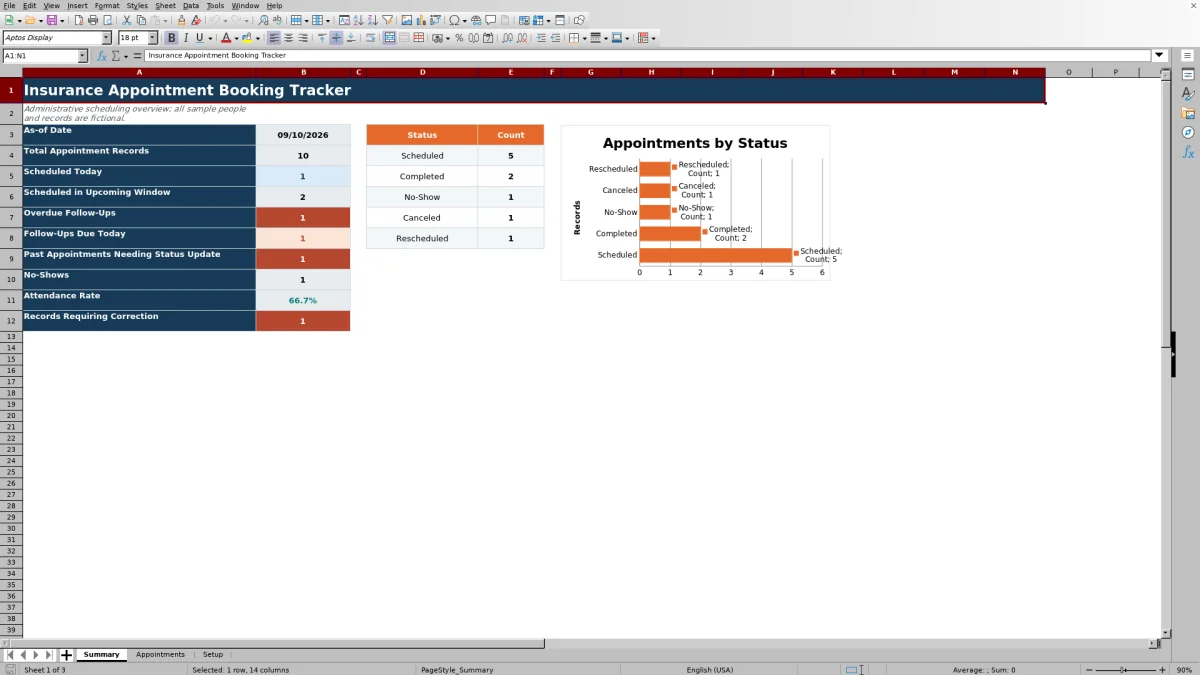
- Provides a concise operational view of appointment volume, status distribution, no-shows, attendance rate, follow-up workload, and records requiring correction.
What is in the file
How to get started
1. Configure the review settings
Open Setup and enter the As-of Date being reviewed. Confirm the Default Follow-Up Days and Upcoming Window Days, then replace the fictional producer names and review the appointment, meeting, and status lists.
2. Record each prospect appointment
Enter one appointment per row on Appointments. Assign a unique Appointment ID and complete the required scheduling fields, including prospect, date, time, duration, type, meeting method, producer, appointment status, follow-up requirement, and follow-up status.
3. Update attendance and follow-up activity
After the meeting, change Appointment Status to Completed, No-Show, Canceled, or Rescheduled as applicable. If follow-up is required, maintain its status and completion date; use Follow-Up Due Override only when the default date should not apply.
4. Review alerts and make the next decision
Use Alert and Data Quality to identify immediate work, then review Summary for scheduled activity, attendance results, follow-up workload, and status counts. Resolve correction messages before relying on the affected record for operational decisions.
A structured appointment process for independent agencies
The workbook addresses the gap between booking a prospect meeting and documenting what happened afterward. The Appointments sheet keeps scheduling and follow-up information on the same row, while Summary turns those records into counts an agency operator can review without manually sorting every entry. Setup supplies the as-of date and timing rules used by the formulas.
How appointment and attendance statuses work
Appointment Status distinguishes Scheduled, Completed, No-Show, Canceled, and Rescheduled records. Scheduled entries drive the today and upcoming-window measures, while Completed and No-Show entries form the attendance-rate denominator. Canceled and Rescheduled records remain visible in the status breakdown but are excluded from that attendance calculation.
Interpreted practical example
Situation: The sample Setup sheet uses September 10, 2026 as the as-of date, two default follow-up days, and a seven-day upcoming window. APT-1002 is scheduled for September 12, requires follow-up, has no override, and is marked Not Started. Action: The operator reviews the row, confirms the producer and meeting details, and leaves the override blank so the default rule applies. Result: Days Until Appointment returns 2, Follow-Up Due Date becomes September 14, and the appointment is included in the upcoming-window count. Interpretation: The meeting is approaching and already has a defined post-appointment follow-up date, but its current Not Started status does not mean the appointment itself was missed. Next decision: Prepare the listed agenda, confirm attendance, and then update Appointment Status and Follow-Up Status after the meeting so later alerts reflect the actual outcome.
Common errors and solutions
A Duplicate appointment ID message means the same identifier appears more than once; assign a unique ID to each record. Missing required field means one or more core fields from Prospect Name through Follow-Up Status is blank; complete the missing entry using the appropriate date, time, number, or dropdown value. Check follow-up fields can appear when Follow-Up Required is No but follow-up dates or an active status remain, or when Follow-Up Required is Yes while the status says Not Needed; align those fields with the intended workflow. Update attendance means a scheduled appointment date has passed; record Completed, No-Show, Canceled, or Rescheduled as appropriate.
Comparison with external tracking alternatives
The workbook should be evaluated as one complete operating method: Setup controls the rules, Appointments holds the working records, and Summary supports review. The alternatives below represent different external methods rather than individual worksheets.
| Method | More suitable when | Operational trade-off |
|---|---|---|
| This Excel workbook | More suitable when an agency needs a local, structured register with formulas, validations, alerts, and a compact dashboard for up to 150 appointment rows. | Requires disciplined manual updates and does not send messages or synchronize calendars. |
| Paper or a manual calendar | More suitable when appointment volume is very low and staff only need a basic visual schedule. | Does not calculate follow-up dates, attendance rates, status counts, or data-quality warnings. |
| Blank spreadsheet | More suitable when the agency needs a fully custom layout and is prepared to design its own fields, formulas, validations, and review process. | Offers flexibility but starts without the workbook's defined status logic and monitoring structure. |
| CRM or agency management system | More suitable when multiple users need integrated communications, permissions, customer history, workflow automation, or calendar synchronization. | May require implementation, administration, licensing, and adaptation to the agency's existing process. |
| Carrier-provided report | More suitable when the review is limited to activity held within one carrier's systems. | May not provide a unified view of prospect appointments and follow-ups across carriers or local agency activity. |
Follow-up timing and alert logic
When Follow-Up Required is Yes, Follow-Up Due Date uses the manually entered override if one exists; otherwise, it adds the Setup default to the appointment date. Alerts identify overdue follow-ups, follow-ups due on the as-of date, appointments occurring that day, and past scheduled appointments that need an outcome. If Data Quality is not OK, the Alert field prioritizes Fix record so the operator can correct the source information first.
Review cadence and operating boundaries
For routine use, update the as-of date, review correction alerts, check today's appointments, examine the upcoming window, and then address due or overdue follow-ups. The workbook contains fictional sample people and records that should be replaced before agency use. Because it is an administrative XLSX tracker, staff remain responsible for communications, calendar changes, privacy controls, retention practices, and updates to any other agency system.
Frequently asked questions
How many appointment records can the workbook hold?
The prepared Appointments table provides 150 data rows, from row 2 through row 151. The calculated columns are populated across that same range.
How is the follow-up due date calculated?
If Follow-Up Required is Yes, the formula uses Follow-Up Due Override when entered. Otherwise, it adds the Default Follow-Up Days from Setup to the appointment date. If follow-up is not required, the calculated due date remains blank.
How does the workbook calculate attendance rate?
Attendance rate equals Completed appointments divided by Completed plus No-Show appointments. Scheduled, Canceled, and Rescheduled records are not included in that calculation, and the result remains blank when there are no completed or no-show records.
Can the producer names and dropdown choices be changed?
Yes. Setup contains the source values for appointment types, meeting methods, producer names, appointment statuses, Yes or No, and follow-up statuses. Replace values within the existing source ranges carefully so the Appointments dropdowns continue to reference valid cells.
Does the workbook send reminders or create replacement appointments automatically?
No. It calculates alerts and provides a Replacement Appointment ID field, but users must communicate with prospects, create any replacement record, and update the relevant statuses manually.
Editorial responsibility

Maya ChenClient and policy workflows

Ethan BrooksWorkbook structure and formula QA