The Insurance Email Campaign Tracker is an Excel workbook for independent insurance agencies that need one place to record campaign funnel activity from emails sent through responses, quotes, and binds. Each campaign row captures its name, type, send date, audience, owner, status, notes, and entered counts.
The workbook calculates campaign-level rates, checks whether funnel counts follow a logical sequence, and summarizes activity within an editable reporting period. Its alerts identify entries or rates that warrant human review; they do not evaluate coverage, confirm compliance, send email, or connect with agency systems.
How this workbook can help
- Keeps campaign details and results together in a consistent agency worksheet.
- Shows how email activity progresses from sends to responses, quotes, and binds.
- Helps staff notice inconsistent counts or low-rate campaigns that need source-record review.
- Provides reporting-period totals and rates without requiring staff to build formulas from scratch.
What is in the file
How to get started
1. Set the reporting controls
Open the Assumptions sheet and review the editable assumptions: reporting start and end dates, maximum emails per campaign, response-rate threshold, bind-rate threshold, and minimum sends required for a rate alert.
2. Enter each campaign
Use one row per campaign on Campaign Tracker. Complete the yellow cells for campaign ID, name, type, send date, audience segment, owner, emails sent, responses, quotes, binds, status, and notes.
3. Review calculated results
Read the response, quote, bind, and overall conversion rates in columns M through P. Check columns Q and R for count inconsistencies or rate prompts, then compare any flagged entry with its source records.
4. Use the summary for the next decision
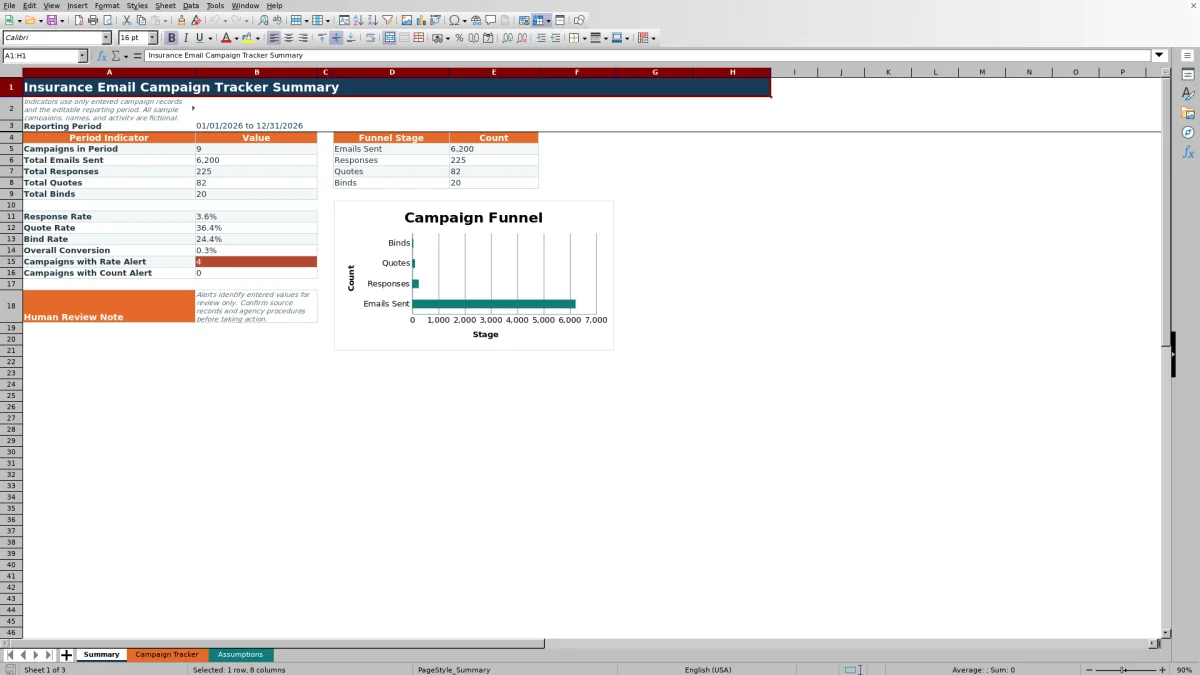
Open Summary to review campaigns, funnel totals, rates, alert counts, and the funnel chart for the selected period. Interpret the aggregate results alongside individual campaign rows before deciding whether to correct data, adjust an audience, revise follow-up, or continue the current process.
What the insurance email campaign tracker records
The Campaign Tracker sheet supports 100 campaign records in rows 5 through 104. Each record includes a campaign ID, campaign name, campaign type, send date, audience segment, owner, emails sent, responses, quotes, binds, status, and notes. The included campaign types are Prospecting, Renewal Outreach, Cross-sell, Win-back, and Event Follow-up, while the status list includes Draft, Scheduled, Sent, Closed, and Paused.
This structure gives an independent agency a repeatable administrative record for outreach activity. It does not store policy coverage details, send messages, import carrier activity, or verify whether a campaign follows legal or agency requirements.
How the workbook calculates campaign rates
Response rate equals responses divided by emails sent. Quote rate equals quotes divided by responses, bind rate equals binds divided by quotes, and overall conversion equals binds divided by emails sent. A rate remains blank when the required campaign identifier or denominator is missing or zero, which avoids presenting a misleading division result.
The Summary sheet applies the same funnel logic to aggregate counts within the reporting period. Because aggregate rates can conceal differences between campaigns, operators should review both the Summary and the underlying campaign rows.
Practical example: interpreting fictional campaign results
Situation: The three fictional sample campaigns fall within the default 2026 reporting period and contain 2,550 emails sent, 103 responses, 46 quotes, and 13 binds.
Action: The agency operator reviews the Summary totals, then checks the individual response and bind rates against the editable 3% response-rate and 20% bind-rate thresholds.
Result: The combined sample produces a 4.0% response rate, a 44.7% quote rate, a 28.3% bind rate, and a 0.5% overall conversion rate. The fictional Juniper Mailbox Follow-Up campaign has a 2.4% response rate and a 12.5% bind rate, so both rate measures call for review.
Interpretation: The aggregate response and bind rates sit above the entered alert thresholds, but one campaign still warrants attention. This shows why a period total should not replace campaign-level review.
Next decision: Confirm the Juniper campaign counts against source records. If the entries are accurate, decide whether its audience, message, timing, or follow-up process should be examined before similar outreach is repeated.
Common errors and practical solutions
If responses exceed emails sent, quotes exceed responses, or binds exceed quotes, the workbook's validation and Count Check are designed to stop or flag the inconsistent sequence. The solution is to compare all four counts with the source report and correct the earliest inaccurate stage rather than changing a later value only to clear the prompt.
If a rate is blank, check whether the campaign ID and required denominator are present and greater than zero. If a campaign is missing from Summary, confirm that its send date falls between the reporting start and end dates. When pasting records, avoid overwriting formula columns M through R; paste only into the editable entry columns and then verify the calculated fields.
Comparison: Excel tracker and external alternatives
The most appropriate tracking method depends on campaign volume, available systems, reporting needs, and staff workflow. The comparison below treats the workbook as one complete operational method rather than comparing its worksheets with one another.
| Method | More suitable when | Operational trade-off |
|---|---|---|
| Insurance Email Campaign Tracker Excel workbook | More suitable when an agency needs a structured, local log for up to 100 campaigns with funnel formulas, validation, editable thresholds, and a period summary. | Results depend on manual entry, and the workbook does not send email or synchronize with agency systems. |
| Paper log or manual notes | More suitable when activity is rare, the team records only a few basic facts, and no calculated rates or consolidated reporting are required. | Totals, rate calculations, corrections, and historical comparisons require additional manual work. |
| Blank spreadsheet | More suitable when the agency needs a fully custom layout and has staff available to design formulas, controls, and review procedures. | Users must create and maintain their own validation, funnel logic, alerts, and summary calculations. |
| CRM or agency management system | More suitable when the agency needs multiuser workflows, contact history, automated activity capture, permissions, integrations, or broader sales-pipeline management. | Configuration, licensing, training, and available campaign fields vary by system. |
| Carrier-provided report | More suitable when the review concerns activity reported by one carrier and the carrier report contains the required campaign and conversion details. | It may not combine outreach across carriers or preserve the agency's own audience, owner, status, and note structure. |
An agency may use more than one method, such as retaining system records as the source and using the Excel tracker for a focused campaign review. Staff should establish which record controls when figures disagree.
Using count checks and rate alerts responsibly
The Count Check evaluates whether later funnel stages exceed earlier stages or appear without the required preceding count. The Rate Alert skips campaigns marked Draft, Scheduled, or Paused and also withholds a prompt when emails sent are blank or below the minimum-send setting.
For qualifying campaigns, the default alert settings request review below a 3% response rate or a 20% bind rate. These are editable workflow inputs, not external benchmarks or sales requirements. A prompt should lead to source verification and operational discussion rather than an automatic conclusion about staff performance or campaign quality.
Building a repeatable agency review routine
Assign one person to maintain each campaign row, use consistent campaign IDs, and update funnel counts from an identified source. At a regular interval, review Count Check first, because inaccurate counts also distort the calculated rates. Then examine Rate Alert, campaign notes, status, audience, and timing for context.
Before a reporting meeting, confirm the Assumptions dates and compare Summary totals with the applicable source records. Record any correction or operational explanation in Notes. This routine keeps the spreadsheet useful as an administrative review tool while preserving human judgment for marketing, sales, compliance, and client-service decisions.
Frequently asked questions
Does the Excel workbook send insurance marketing emails?
No. It is an administrative tracker for manually entered campaign records and does not send email, connect to an email platform, or synchronize with an agency management system.
How are response, quote, bind, and overall conversion rates calculated?
Response rate is responses divided by emails sent, quote rate is quotes divided by responses, bind rate is binds divided by quotes, and overall conversion is binds divided by emails sent. The applicable rate remains blank when its required denominator is blank or zero.
What causes a campaign rate alert?
A qualifying campaign receives a review prompt when its response rate or bind rate falls below the editable threshold. Draft, Scheduled, and Paused campaigns are excluded, and campaigns below the minimum-send setting do not receive a rate prompt.
Can the reporting period and campaign choices be changed?
Yes. The Assumptions sheet contains editable start and end dates, thresholds, volume limits, statuses, campaign types, and owner choices. Changes should reflect the agency's own administrative process.
What should staff do when the workbook flags an error or low rate?
Compare the campaign row with the agency's source records, correct inaccurate counts or dates, and document relevant context in Notes. If the data is accurate, use the prompt to decide whether the audience, message, timing, or follow-up process needs further review.
Editorial responsibility

Maya ChenClient and policy workflows

Ethan BrooksWorkbook structure and formula QA