This Excel workbook gives independent insurance agency operators a centralized way to track upcoming policy expirations, annual premiums, account ownership, policy status, renewal stage, and recent contact dates. Formula-driven fields calculate days remaining, classify open records by expiration window, flag follow-up needs, and identify common data issues.
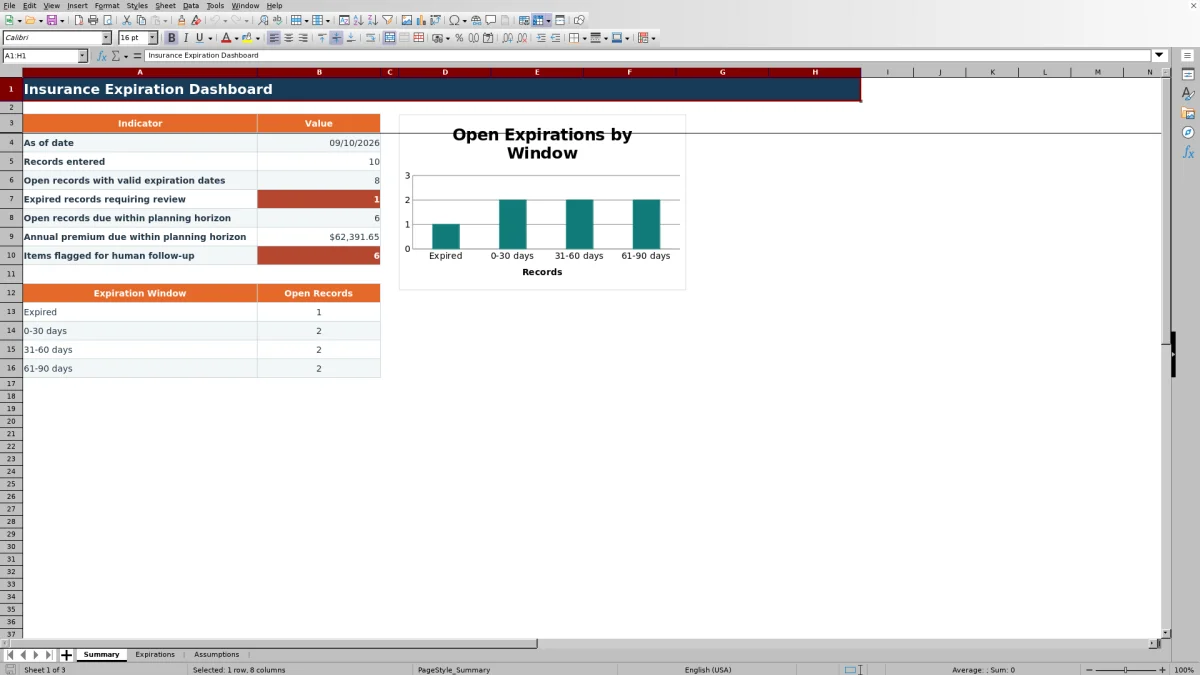
The dashboard uses configurable time windows controlled from the Assumptions sheet. The Summary sheet then reports entered records, open records with valid expiration dates, expired items requiring review, expirations and premium within the planning horizon, and the number of items flagged for human follow-up.
How this workbook can help
- Provides a consolidated view of upcoming and expired policy records for routine renewal planning.
- Helps account teams prioritize human follow-up based on expiration timing, renewal stage, and recent contact activity.
- Connects near-term expiration volume with the annual premium recorded for policies inside the planning horizon.
- Uses configurable dates, thresholds, dropdown lists, and validation limits instead of relying on a fixed review schedule.
What is in the file
How to get started
1. Configure the review settings
Open the Assumptions sheet and confirm the as-of date, urgent window, near-term window, planning horizon, and follow-up cadence. The prepared values are 30, 60, and 90 days for the expiration bands and 14 days for follow-up cadence.
2. Enter or replace policy records
On the Expirations sheet, replace the fictional examples in the highlighted input cells. Complete the expiration ID, client, policy reference, line of business, carrier, expiration date, annual premium, account owner, policy status, renewal stage, and last contact date.
3. Review calculated results
Use Days Remaining, Expiration Window, Follow-Up Flag, and Data Check to identify timing, workload, and record-quality issues. Filter the prepared range by owner, status, stage, carrier, line of business, expiration window, or follow-up flag.
4. Make the next servicing decision
Review the Summary sheet for expired items, open expirations within the planning horizon, associated annual premium, and follow-up volume. Assign the next action outside the workbook as appropriate, then update the record's stage, status, or last contact date when activity occurs.
How the insurance expiration dashboard works
The workbook treats the as-of date on the Assumptions sheet as the reference point for its calculations. Each entered expiration date is compared with that date to calculate Days Remaining. Open records are then assigned to an expired, urgent, near-term, planning-horizon, or outside-window category, while Renewed, Non-Renewed, and Cancelled records are treated as closed by the dashboard logic.
Configure expiration windows for agency planning
The prepared thresholds are 30 days for the urgent window, 60 days for the near-term window, and 90 days for the planning horizon. An agency can adjust these values on the Assumptions sheet while keeping the thresholds in ascending order. The revised settings flow into the expiration classifications, Summary counts, follow-up logic, and chart, allowing the review horizon to reflect the agency's operating rhythm.
Interpreted practical example
Situation: the fictional Blue Kettle Bakery record has an expiration date of September 5, 2026, while the workbook's as-of date is September 10, 2026. Action: Excel subtracts the as-of date from the expiration date and evaluates the active policy status. Result: Days Remaining is negative, the expiration window is Expired, and the follow-up field returns Review expired. Interpretation: the record is still open in the dashboard even though its recorded expiration date has passed. Next decision: the operator should verify the renewal outcome and then update the policy status, renewal stage, or contact information to reflect what actually occurred.
Common errors and practical solutions
The Data Check column is the first place to investigate a record that does not behave as expected. If it reports incomplete required fields, complete the inputs from Expiration ID through Renewal Stage. If it identifies an expiration-date, premium, or contact-date issue, confirm that dates are stored as valid Excel dates, the premium is numeric and nonnegative, and the contact date is appropriate relative to the configured as-of date. If expiration bands appear incorrect, review the as-of date and confirm that the urgent, near-term, and planning-horizon thresholds remain ordered from lowest to highest. After correcting an input, allow Excel to recalculate before reviewing the Summary totals again.
Comparison with alternative tracking methods
The workbook is one complete operational method combining configuration, policy-record entry, formula-based classification, data checks, follow-up flags, filters, and summary reporting. The following comparison explains when it or an external alternative may be more suitable.
| Method | More suitable when | Operational consideration |
|---|---|---|
| Insurance expiration dashboard workbook | An agency needs a structured Excel process with configurable windows, calculated follow-up indicators, validation, and a summary view for up to 100 prepared records. | Staff must maintain the workbook's dates, statuses, stages, and contact information for the results to remain useful. |
| Blank spreadsheet | A team needs a flexible one-time list and is prepared to design its own formulas, validation, and reporting logic. | It provides fewer built-in controls unless the team creates and maintains them. |
| Agency management system or CRM | The agency already has integrated policy records, permissions, activity histories, reminders, and renewal workflows configured in that system. | Setup, licensing, data migration, and system administration may be required. |
| Carrier-provided expiration report | The immediate task is reconciling or reviewing policies associated with a particular carrier. | It may not provide a consolidated cross-carrier view or use the agency's preferred follow-up rules. |
| Paper or manual list | The need is temporary, the record count is very small, and no calculations or shared reporting are required. | Timing classifications, premium totals, data checks, and follow-up indicators must be handled manually. |
Use follow-up flags as review prompts
The Follow-Up Flag is an administrative prompt rather than proof that a servicing action has occurred. Open records can be marked for follow-up because they are expired, inside the planning horizon, close to expiration, missing a contact date, at the Not Started stage, or beyond the configured follow-up cadence. Closed policy statuses and a Completed renewal stage are excluded from active follow-up by the workbook logic. Operators should interpret each flag alongside the underlying policy record before deciding what to do next.
Maintain reliable dashboard results
The prepared entry area runs from rows 5 through 104, giving the workbook capacity for 100 policy expiration records. Consistent use of the dropdown values helps the Summary formulas recognize closed and open records correctly. Review the Assumptions sheet before each reporting cycle, keep the as-of date current for the intended review, replace the fictional demonstration data, and investigate Data Check messages before relying on counts or premium totals for workload planning.
Frequently asked questions
What does the dashboard count as an open record with a valid expiration date?
The Summary logic requires an entered expiration ID, a valid positive Excel expiration date, and a nonblank policy status that is not Renewed, Non-Renewed, or Cancelled.
Can the expiration windows be changed?
Yes. Change the urgent, near-term, and planning-horizon values on the Assumptions sheet. Keep them in ascending order because the workbook uses those thresholds to classify records and calculate Summary totals.
Why is a policy marked for follow-up?
An open policy may be flagged because it is expired, falls within the planning horizon, is inside the urgent window, remains at Not Started, lacks a last contact date, or has exceeded the configured follow-up cadence. Review the expiration date, stage, status, and contact date together before acting.
How many policy expiration records can the prepared workbook hold?
The Expirations sheet is prepared for 100 records in rows 5 through 104. Those rows contain the workbook's formulas, validation rules, conditional formatting, and filter range.
Are the included policy records real?
No. The sample people, companies, carriers, policy references, and records are identified as fictional. Replace them with the agency's administrative data before using the dashboard for operational review.
Editorial responsibility

Maya ChenClient and policy workflows

Ethan BrooksWorkbook structure and formula QA