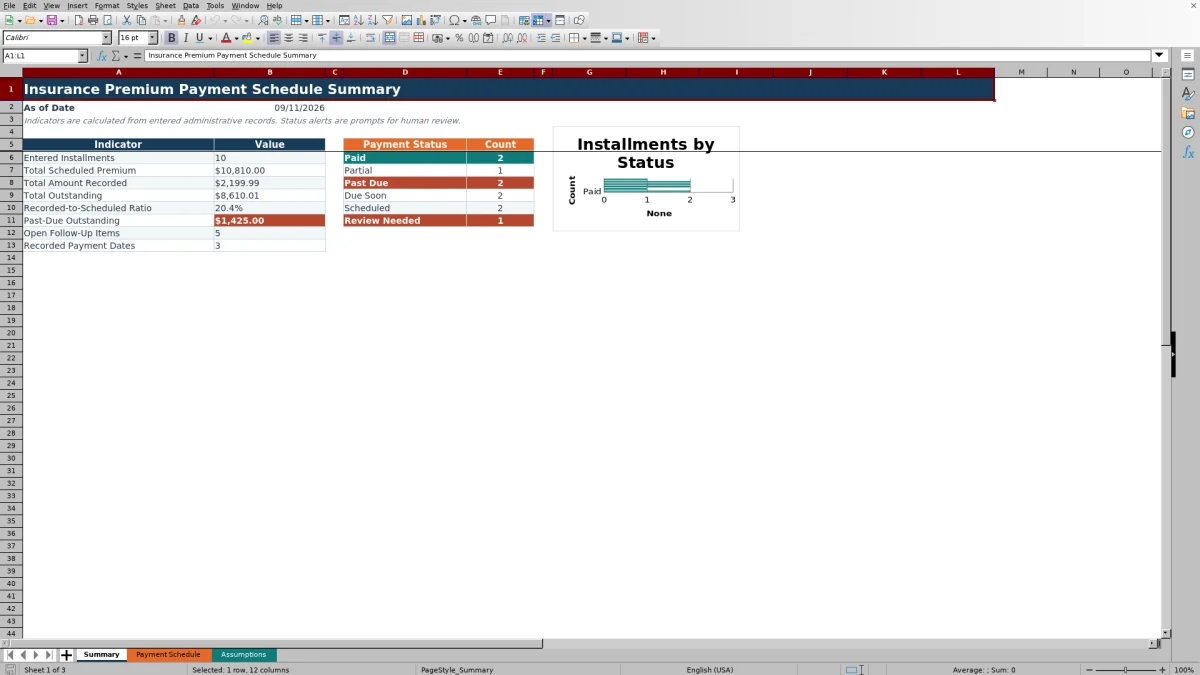
This XLSX is an insurance premium payment schedule for independent agency teams that need a consistent way to maintain a premium installment record. It captures policy references, insured accounts, carriers, installment numbers, due dates, scheduled premiums, recorded payments, owners, follow-up selections, and notes.
Formula-driven fields calculate payment status, outstanding balance, and days past due across as many as 100 installment rows. The Summary sheet turns those entries into totals, ratios, follow-up counts, and review-oriented status cues; these indicators support administrative review but do not confirm that a carrier received, cleared, or correctly applied a payment.
How this workbook can help
- Keeps scheduled premiums and recorded payment details together at the installment level.
- Helps agency staff identify unpaid, partially paid, upcoming, overdue, or incomplete records.
- Quantifies scheduled premiums, recorded amounts, outstanding balances, and past-due exposure.
- Supports consistent follow-up decisions without treating spreadsheet calculations as carrier confirmation.
What is in the file
How to get started
1. Confirm the operating situation
Open the Assumptions sheet before entering records. Set the as-of date, accepted date range, due-soon window, payment match tolerance, maximum entered amount, and maximum installment number to match the agency's review period and controls.
2. Enter the installment schedule
On Payment Schedule, replace the fictional sample records and enter one installment per row. Complete the policy reference, insured, carrier, installment number, due date, scheduled premium, schedule owner, and any available administrative details in the yellow cells.
3. Record payment activity and review the result
Add the payment date, amount recorded, payment reference, recorded method, follow-up selection, and notes when evidence is available. Inspect the calculated columns for payment status, outstanding balance, and days past due rather than typing over their formulas.
4. Interpret the indicators and make the next decision
Use the Summary sheet to review totals, the recorded-to-scheduled ratio, past-due outstanding amounts, open follow-up items, and status counts. Compare each alert with receipts, bank activity, carrier records, or accounting documentation, then decide whether to close the item, contact a party, await a record, or continue review.
Purpose and Operating Context
The workbook is designed for the administrative task of laying out policy premium installments and recording payment activity against them. It is useful when an agency needs a cross-policy working schedule that identifies what was due, what amount was recorded, what remains outstanding, who owns the schedule, and what follow-up state has been selected. The workbook does not replace carrier billing records, bank records, receipts, or the agency's accounting system.
Schedule Setup and Entry Controls
The Assumptions sheet controls the as-of date, earliest and latest accepted dates, due-soon window, payment match tolerance, maximum amount, and maximum installment number. Those settings feed the validation rules and formulas on Payment Schedule. Date validation applies to due dates and payment dates, amount validation limits scheduled premiums and recorded amounts, and list validation standardizes recorded methods and follow-up selections. Confirming these controls first reduces inconsistent entries and makes later status interpretation more reliable.
How Payment Status Is Interpreted
A populated row can return Paid, Partial, Past Due, Due Soon, Scheduled, or Review Needed. Paid means the recorded amount reaches the scheduled premium within the configured match tolerance. Partial means a positive amount is present but does not meet the paid threshold. An unpaid balance can be Past Due, Due Soon, or Scheduled according to its due date and the assumptions. Review Needed appears when required schedule information is missing or payment details conflict, such as an amount without a payment date or a payment date without a numeric amount. Because amount-based tests occur before date-based tests, an overdue installment with a partial payment can display Partial while Days Past Due still shows its age.
Interpreted Practical Example
Situation: as of September 11, 2026, an installment due August 22 has a scheduled premium of $800 and a payment of $300 recorded on September 1. Action: enter those dates and amounts on the same installment row. Result: the workbook calculates a $500 outstanding balance, a Partial payment status, and 20 days past due. Interpretation: Partial describes the amount relationship, while the days-past-due value shows that the remaining balance is already overdue; the row does not need to say Past Due for the timing risk to be visible. Next decision: verify the $300 against supporting records, determine whether another payment is expected, and select the appropriate follow-up state.
Common Entry Errors and Solutions
An amount recorded without a payment date triggers Review Needed; add the supported payment date or remove the unsupported amount. A payment date without a numeric amount also triggers review; enter the documented amount or clear the premature date. A missing due date or scheduled premium prevents reliable classification; complete the schedule from source records. An unexpected Due Soon or Past Due result may come from an outdated as-of date or due-soon window; review the Assumptions sheet before changing transaction data. If a displayed result still appears inconsistent, inspect the row for overwritten formulas or invalid data and reconcile it with authoritative documentation.
Comparison With External Tracking Alternatives
The Excel workbook should be evaluated as one complete operational method: structured installment entry, validation, calculated status and balances, follow-up recording, and summary review. The alternatives below may be more suitable when their stated operating conditions apply.
| Method | More suitable when | Primary consideration |
|---|---|---|
| This Excel workbook | More suitable when an agency needs a consistent cross-policy schedule with configurable timing rules, calculated balances, follow-up fields, and summary indicators. | Staff must enter and reconcile records manually, and spreadsheet status does not prove carrier receipt or allocation. |
| Paper or manual checklist | More suitable when the task is a very small, temporary review with few installments and no need for calculated monitoring. | Totals, aging, consistency checks, filtering, and shared updates require manual work. |
| Blank spreadsheet | More suitable when an agency needs fully custom fields and has staff available to design, test, and maintain formulas and controls. | It does not begin with this workbook's validated fields, status logic, assumptions, or summary structure. |
| Agency management system, CRM, or carrier report | More suitable when integrated or carrier-authoritative transaction data is available and the needed workflow already exists in that system. | Available fields, cross-carrier visibility, installment detail, and follow-up handling depend on the external system or report. |
Review Sequence and Next Decisions
Use a repeatable sequence for each review cycle. Situation: establish the correct as-of date and identify the policies being monitored. Action: update scheduled installments and recorded payment evidence. Result: review calculated balances, status counts, past-due amounts, and follow-up totals. Interpretation: distinguish amount status from timing indicators and investigate Review Needed records. Next decision: resolve the item, plan contact, await documentation, or escalate the discrepancy according to agency procedures. Repeating that sequence helps keep the schedule operational rather than treating the Summary sheet as a final accounting record.
Frequently asked questions
What does the insurance premium payment schedule track?
It tracks policy references, insured accounts, carriers, installment numbers, due dates, scheduled premiums, payment dates, recorded amounts, payment references, methods, owners, follow-up selections, and notes. It also calculates payment status, outstanding balance, and days past due.
Does a Paid status confirm that the carrier received the premium?
No. Paid means the entered amount meets the scheduled premium within the configured tolerance. Agency staff should still reconcile the entry with carrier, bank, receipt, or accounting records before treating the payment as confirmed.
Why can an overdue installment display Partial instead of Past Due?
The status logic evaluates a positive recorded amount before assigning date-based unpaid statuses. An overdue installment with an amount below the paid threshold can therefore display Partial, while the Days Past Due column identifies how long the remaining balance has been overdue.
How do I change the due-soon period?
Edit the Due-Soon Window value on the Assumptions sheet. The supplied value is 14 days, and the validated entry range is 0 through 90 days. Review the resulting classifications after changing it.
How many installment records can the Excel workbook hold?
The Payment Schedule provides 100 entry rows, from row 5 through row 104. Its formulas, validations, filter range, and Summary calculations are configured for those rows.
Editorial responsibility

Maya ChenClient and policy workflows

Ethan BrooksWorkbook structure and formula QA