This Excel insurance policy cancellation tracker gives independent agencies a structured place to record cancellation notices, policy references, insureds, carriers, effective dates, reasons, annual premiums, owners, save actions, and outcomes. It supports up to 120 cancellation records in a filterable worksheet.
The XLSX combines a detailed Cancellations register with a Summary dashboard and editable Assumptions sheet. Date calculations, workflow counts, premium totals, dropdown lists, and alerts support human review; they do not determine whether coverage remains in force or whether a cancellation is legally valid.
How this workbook can help
- Centralizes cancellation notices, follow-up dates, owners, save actions, outcomes, and record notes in one administrative register.
- Helps agency staff prioritize approaching or past effective dates without treating calculated alerts as coverage determinations.
- Exposes missing statuses, effective dates, owners, and actions so incomplete records can be reviewed before the next decision.
- Summarizes open, retained, and completed-cancellation annual premium alongside workflow counts and retention results.
What is in the file
How to get started
1. Confirm the operating assumptions
Open the Assumptions sheet and check the review date, warning horizon, accepted date range, and maximum annual premium. Review the editable status, reason, owner, outcome, and carrier lists before entering agency records.
2. Enter each cancellation notice
On the Cancellations sheet, assign a cancellation ID and enter the policy reference, insured, carrier, notice date, effective date, reason, annual premium, owner, and status. Add the planned save action, next follow-up, and relevant administrative notes.
3. Work the calculated review items
Use Days to Effective, Notice Lead Days, and the Review Alert column to find records needing attention. Filter the register by owner, status, date, reason, outcome, or alert, then verify each item against the agency's source information.
4. Record the result and choose the next action
When a matter is resolved, update the outcome and closed date. Review the Summary sheet to interpret workflow counts, premium totals, missing-information checks, retention results, and status distribution before assigning the next follow-up or closing the record.
Situation: Cancellation Work Needs a Shared Operational View
A cancellation notice can create several administrative tasks at once: log the notice, identify the effective date, assign an owner, document a save action, schedule follow-up, and record the final outcome. When those details are scattered across email, paper notes, or separate files, an agency can lose sight of effective-date risk or leave a record without a clear next action.
This workbook organizes those details by cancellation record. The Cancellations sheet is the working register, the Summary sheet consolidates operational results, and the Assumptions sheet controls the review date, warning horizon, input limits, and dropdown values.
Action: Configure the Workbook Before Entering Records
Start with the Assumptions sheet. Its review date drives Days to Effective and time-based prompts, while the warning horizon determines when an approaching effective date is considered close enough to review. The earliest and latest accepted record dates constrain notice, effective, follow-up, and closed-date entries. The maximum annual premium provides an administrative data-entry limit rather than a pricing or coverage limit.
The same sheet supplies the dropdown values used for statuses, reasons, owners, outcomes, and carriers. Agencies can replace the fictional examples with their own administrative options while retaining the workbook's existing validation structure.
Result: Turn Entries Into a Review Queue and Summary
After a cancellation ID is entered, the row formulas can calculate the number of days from the review date to the cancellation effective date and the lead time between notice receipt and the effective date. The Review Alert field evaluates the populated record and assumptions to present an administrative prompt.
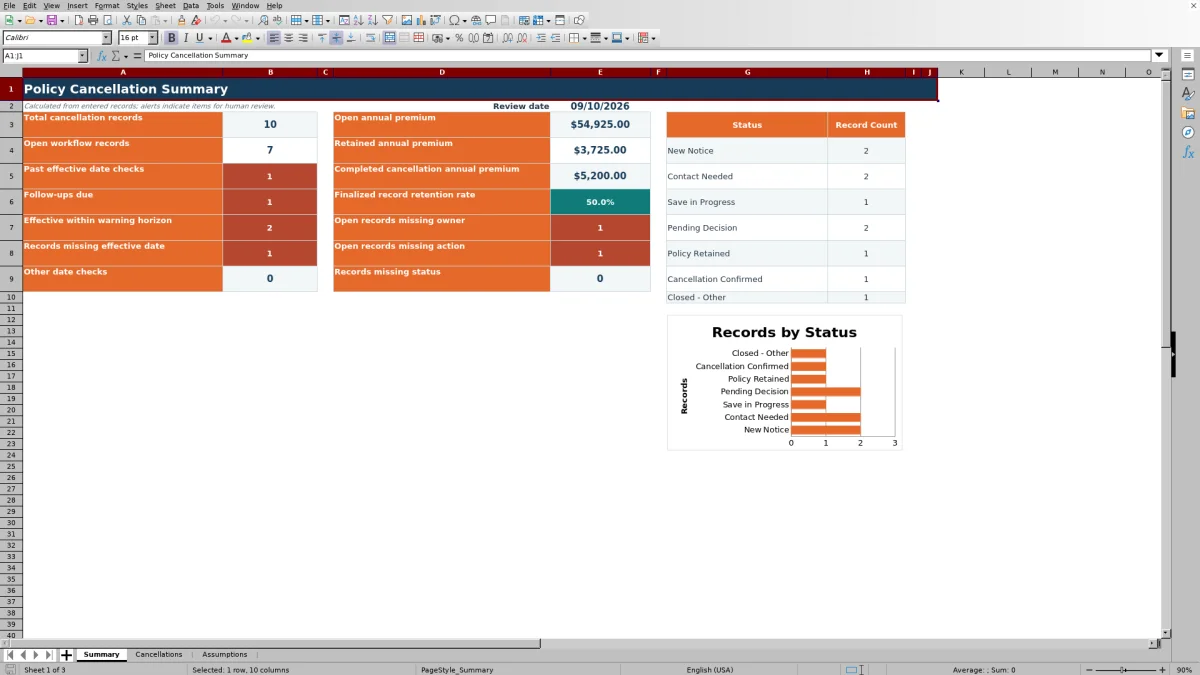
The Summary sheet then aggregates total records, open workflow records, follow-ups due, effective-date checks, other date checks, and records missing a status, owner, effective date, or action. It also reports open annual premium, retained annual premium, completed-cancellation annual premium, a finalized-record retention rate, and record counts by configured status.
Interpretation Through a Practical Example
Consider fictional record FIC-CXL-003. Its notice was received August 21, 2026, its cancellation effective date is September 7, 2026, and the Assumptions review date is September 10, 2026. The record has $9,125 in annual premium, is assigned to Morgan Example, carries a Pending Decision status and Pending outcome, and shows a September 6 follow-up date.
Situation: both the effective date and follow-up date precede the review date. Action: the owner checks the row's calculated dates, alert, notes, and supporting agency information. Result: the effective date is three days past the review date, so the record belongs in a past-effective-date review queue. Interpretation: the elapsed date signals an administrative timing issue; it does not prove that coverage ended. Next decision: after human verification, the owner updates the status, outcome, closed date, follow-up, save action, or notes as appropriate.
Common Entry Errors and Practical Solutions
Error: the review date is stale or a required assumption is blank. Solution: confirm the review date, warning horizon, accepted date limits, premium limit, and required status values on the Assumptions sheet before relying on alerts.
Error: the cancellation effective date precedes the notice-received date. Solution: compare both entries with the source notice and correct the inaccurate field; do not change a valid date merely to remove the date-sequence prompt.
Error: an active record has no status, effective date, owner, or save action. Solution: complete the corresponding Status, Cancellation Effective, Owner, or Save Action field so the responsible person and next step are visible.
Error: the next follow-up has passed or falls after the effective date. Solution: review the current situation, document the actual next activity, and revise the follow-up only after deciding what action is required.
Comparison With Other Cancellation Tracking Methods
The workbook functions as one complete operational method: a standardized register, configurable inputs, row-level date calculations, review alerts, summary metrics, and a status chart. The comparison below explains which method is more suitable when a particular operating condition applies.
| Method | Operational approach | More suitable when |
|---|---|---|
| This Excel workbook | Combines 120 structured cancellation rows, validated inputs, date calculations, review alerts, summary measures, and a status chart. | The workbook is more suitable when an agency wants a local, configurable cancellation workflow and is prepared to maintain records in Excel. |
| Paper or manual notes | Captures information without formula-driven date calculations, consolidated premium reporting, or a shared filtered register. | A paper process is more suitable when volume is very low, one person handles every item, and automated calculations are not required. |
| Blank spreadsheet | Allows unrestricted design but requires the agency to create its own fields, formulas, validations, alerts, and summaries. | A blank spreadsheet is more suitable when the agency needs a substantially different data model and has the resources to build and test it. |
| CRM or agency management system | Capabilities depend on the product, licensing, configuration, and available workflow functions. | A CRM or agency management system is more suitable when cancellation activity must remain inside the agency's system of record and that system supports the required workflow. |
| Carrier-provided report | Usually presents information supplied by a particular carrier rather than a cross-carrier agency action log. | A carrier report is more suitable when the task is limited to reviewing that carrier's reported records and no agency-wide owner or save-action workflow is needed. |
No method replaces verification against policy documents, carrier communications, agency records, and applicable procedures.
Next Decision: Assign, Escalate, Retain, or Close
After reviewing a row, decide whether it needs another follow-up, a different owner, a documented save action, or final disposition. Available outcome examples include Pending, Policy Retained, Cancellation Completed, and Closed - Other. A closed date can be entered when the administrative record is finalized.
Use the Summary sheet to decide where attention should go next: past or approaching effective dates, overdue follow-ups, missing ownership, missing actions, incomplete statuses, or unresolved premium exposure. Treat every summary value as a management cue that leads back to the underlying cancellation record and a documented human decision.
Frequently asked questions
Does the Excel tracker confirm that a policy has been canceled?
No. The workbook records administrative information and calculates review prompts, but it does not verify coverage, policy status, legal notice requirements, or cancellation validity. Confirm those matters through the appropriate carrier, policy, agency, and regulatory sources.
How many cancellation records can the workbook hold?
The Cancellations sheet provides 120 prepared record rows, running from row 5 through row 124. Each row includes the three calculated fields for Days to Effective, Notice Lead Days, and Review Alert.
How are the date calculations determined?
Days to Effective subtracts the Assumptions review date from the cancellation effective date. Notice Lead Days subtracts the notice-received date from the cancellation effective date. Blank required fields generally produce blank calculated results rather than a misleading number.
Which workbook settings can an agency change?
The Assumptions sheet allows users to edit the review date, warning horizon, accepted record-date limits, maximum annual premium input, and list values for statuses, reasons, owners, outcomes, and carriers.
What should an agency review first when opening the workbook?
Confirm the Assumptions settings, then review the Summary counts and filter the Cancellations sheet by Review Alert. Start with past effective dates, overdue follow-ups, approaching effective dates, date-sequence concerns, and records missing key workflow information.
Editorial responsibility

Maya ChenClient and policy workflows

Ethan BrooksWorkbook structure and formula QA