The Insurance Policy Reinstatement Tracker is an Excel workbook for independent agencies managing reinstatement requests from initial intake through carrier disposition. It records policy references, cancellation and request dates, requirements, amounts, owners, follow-ups, decisions, effective dates, notes, and final outcomes.
The XLSX combines a 100-row case register with calculated days open, balances, and case review alerts. A separate Summary sheet turns those records into workload, financial, and outcome indicators, while the Assumptions sheet holds editable thresholds and the values used by entry dropdowns.
How this workbook can help
- Keeps requirements, payment information, follow-up dates, carrier decisions, and agency notes together for each reinstatement request.
- Helps agency staff prioritize overdue requirements, upcoming follow-ups, long-running open requests, and incomplete outcome records.
- Provides visibility into amounts required, amounts received, remaining recorded balances, and the collection ratio.
- Summarizes open and closed workload so operators can distinguish pending submissions from reinstated, declined, or withdrawn cases.
What is in the file
How to get started
1. Review the agency settings
Open the Assumptions sheet and review the agency thresholds for open-case days, the due-soon window, high balances, permitted dates, and maximum amounts. Edit the supplied policy type, requirement status, outcome, owner, and carrier list entries when needed.
2. Enter each reinstatement request
On the Reinstatements sheet, replace the fictional samples or use an available row. Enter a case ID, client, policy reference, policy type, carrier, relevant dates, required and received amounts, requirements status, assigned owner, next follow-up, and agency notes.
3. Work the exceptions
Filter the Review Alert column to find date-order issues, missing status or decision information, overdue requirements, follow-up checks, and open-duration checks. Correct the underlying case information rather than typing over the formulas in the calculated columns.
4. Record the result and review the dashboard
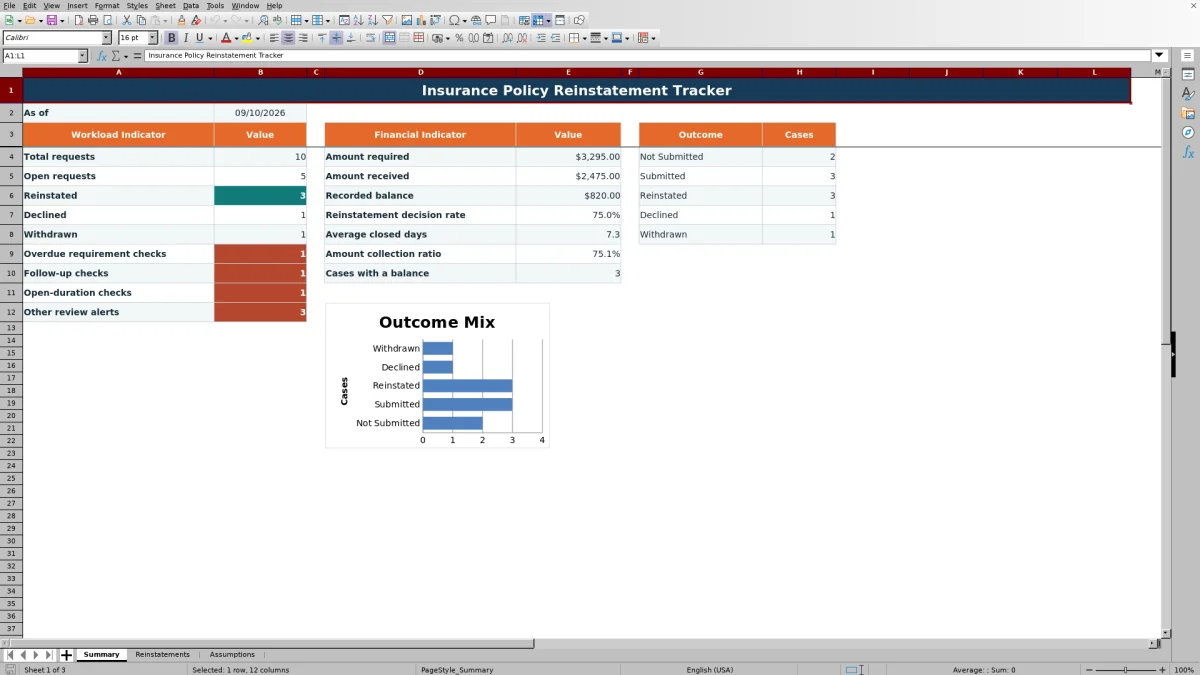
Enter the outcome, decision date, and reinstatement effective date when applicable. Then use the Summary sheet to review request counts, financial totals, decision rate, average closed days, cases with balances, alerts, and the chart of outcomes.
What the Reinstatement Tracker Covers
The workbook follows a reinstatement request from cancellation and agency intake through requirements, payment collection, carrier submission, decision, and effective date. Each case can include a responsible owner, next follow-up date, and free-form agency notes. Outcome choices are Not Submitted, Submitted, Reinstated, Declined, and Withdrawn, allowing the Summary sheet to separate active work from closed dispositions.
Using Assumptions and Standardized Lists
The Assumptions sheet provides editable values for the open-case review target, due-soon window, high-balance review amount, earliest and latest allowed dates, and maximum allowed amount. It also supplies the policy types, requirement statuses, outcomes, owners, and carriers used by the Reinstatements dropdowns. Because those validations reference fixed cell ranges, agencies expanding a list beyond the supplied cells should also update the corresponding validation range in Excel.
Managing Requirements, Payments, and Follow-Ups
Amount Required and Amount Received feed the calculated Recorded Balance, which is the unpaid amount remaining without going below zero. Requirements Due, Requirements Status, Next Follow-up, Outcome Status, and Days Open support the review logic. Operators can filter the case register by owner, carrier, status, date, or alert to organize daily work without separating payment activity from the related reinstatement request.
Interpreted Practical Example
Situation: sample case SAMPLE-RI-001 has an August 1, 2026 request date, $650 required, $650 received, completed requirements, and a Reinstated outcome dated August 9 with an August 10 effective date. Action: the operator records those dates, amounts, statuses, and the carrier result in one row. Result: the formulas produce eight days open and a $0 recorded balance, while the Summary counts the case as reinstated and includes both $650 amounts in its financial totals. Interpretation: the entered record shows full collection and an eight-day interval from request to decision. Next decision: confirm the carrier documentation is retained in the agency's normal record system, then direct collection and follow-up attention to open cases with balances or alerts.
Common Entry Errors and Solutions
A Check date order alert calls for verifying cancellation, request, and decision dates. A missing outcome should be resolved by selecting an allowed status; a closed outcome without a decision date requires the decision date; and a Reinstated case without an effective date requires that effective date. Overdue-requirement, follow-up, or open-duration checks call for reviewing the case, contacting the appropriate party when needed, and updating the relevant status or date. If Excel rejects a date or amount, compare the entry with the minimum, maximum, or allowed range on Assumptions. In every case, resolve the source field rather than replacing the formulas in Days Open, Recorded Balance, or Review Alert.
Comparison With External Tracking Alternatives
The complete workbook method combines standardized case entry, formulas, validations, alerts, financial totals, and outcome reporting. The alternatives below can still be appropriate depending on agency volume, integration needs, and carrier access.
| Method | More suitable when | Operational trade-off |
|---|---|---|
| Insurance Policy Reinstatement Tracker workbook | More suitable when an agency needs a self-contained Excel process for up to 100 tracked cases with consistent fields, calculations, review prompts, and summary reporting. | It requires disciplined manual entry and is not an integrated policy administration or document-storage system. |
| Paper or manual checklist | More suitable when case volume is very low and work is handled by one person without a need for calculated metrics. | It provides limited filtering, aggregation, financial calculation, and shared visibility. |
| Blank spreadsheet | More suitable when an agency needs a fully custom structure and is prepared to design and maintain its own formulas, validation, and reporting. | Setup and testing remain the agency's responsibility, and inconsistent entry is more likely without controls. |
| CRM or agency management system | More suitable when multiple users need permissions, activity history, document links, automated workflows, and integration with existing client or policy records. | Configuration, licensing, and implementation may be more involved than a standalone XLSX. |
| Carrier-provided report | More suitable when the agency only needs status information for business handled by that carrier. | It may not combine requirements, payments, owners, notes, and outcomes across several carriers in one agency view. |
The workbook is therefore most useful as an agency-operated tracking method, while an integrated system is more suitable when centralized records, automation, permissions, or multiuser audit history are required.
Reading Results and Choosing the Next Action
Start with Total requests and Open requests to understand workload, then compare Amount Required with Amount Received and review the collection ratio and cases with a balance. Reinstated, Declined, and Withdrawn counts explain closed outcomes, while the decision rate compares reinstated cases with reinstated plus declined cases. Average closed days provides processing context. Interpret these indicators alongside the alert counts: a high open count with overdue or open-duration checks supports immediate case review, while a high balance total supports payment follow-up before relying on the outcome chart alone.
Frequently asked questions
How many reinstatement requests can the Excel tracker hold?
The Reinstatements sheet has prepared rows 2 through 101, providing space for 100 cases. Fictional sample rows count toward that capacity until they are replaced or cleared.
Which fields are calculated automatically?
Days Open, Recorded Balance, and Review Alert are calculated for each prepared case row. The Summary sheet also calculates workload counts, financial totals, ratios, average closed days, balance counts, and alert totals.
Can the policy types, carriers, owners, and statuses be changed?
Yes. The supplied dropdown values are stored on the Assumptions sheet and can be edited. If a list must extend beyond its existing validation range, the related Excel data-validation reference also needs to be updated.
Does a review alert approve or deny policy reinstatement?
No. Review alerts identify record conditions that may need attention, such as missing dates, overdue requirements, follow-up timing, or extended open duration. Carrier decisions and agency judgment remain outside the formula logic.
What should an agency review on the Summary sheet?
Review total and open requests, closed outcomes, required and received amounts, recorded balances, collection ratio, decision rate, average closed days, cases with balances, and each alert category. Use those results to decide whether the next action is requirement follow-up, payment collection, status correction, carrier contact, or case closure.
Editorial responsibility

Maya ChenClient and policy workflows

Ethan BrooksWorkbook structure and formula QA