This Excel workbook provides a household-to-policy map for an independent insurance agency. It connects each household record with its separate policies and insured items while retaining policy types, carriers, statuses, annual premiums, service owners, effective dates, and renewal dates.
Calculated fields and a Summary sheet support renewal follow-up, household review checks, and correction of unmatched references. The workbook is an administrative aid rather than a source of coverage recommendations, so agency staff should verify policy documents and carrier records before acting.
How this workbook can help
- See each household's active policy count, mapped item count, active annual premium, and next renewal in one calculated row.
- Identify active policies with past-due renewal dates or dates falling within defined renewal windows.
- Find household and policy references that do not match before relying on portfolio totals.
- Use summary indicators to prioritize renewal, contact, review, and data-correction work.
What is in the file
How to get started
Step 1: Review assumptions
Open the Assumptions sheet and confirm the policy types, policy statuses, item types, item statuses, review statuses, record owners, date limits, numeric limits, 90-day renewal alert horizon, and 365-day review threshold. Adjust these administrative inputs when agency procedures require different values.
Step 2: Enter household records
Add each household to the yellow input cells on the Households sheet. Assign a stable Household ID, then enter the household name, primary contact, location, account owner, review status, and last review date.
Step 3: Connect policies and items
Enter each contract separately on the Policies sheet and use its Household ID to establish the relationship. Then add insured items on the Insured Items sheet, supplying both the Household ID and Policy Ref so the calculated match fields can test the connection.
Step 4: Review results and decide
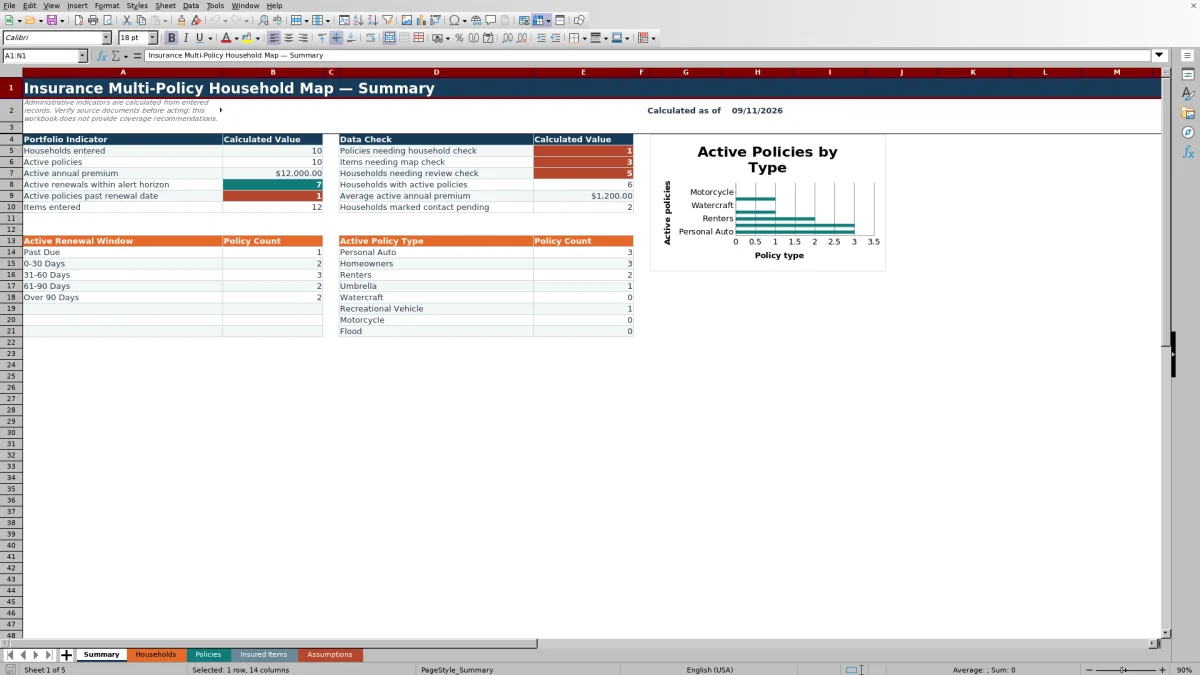
Filter the record sheets for check messages, review the calculated renewal windows, and use the Summary sheet to assess counts and exceptions. Verify source documents, correct mismatched references, and assign follow-up based on the applicable renewal or review date.
Situation: Household Information Is Split Across Records
An agency may service several policies for one household, with vehicles, residences, watercraft, or other recorded items attached to different contracts. When those records are reviewed separately, staff can miss the household context, the earliest renewal date, or a reference that was entered against the wrong account. This Excel workbook addresses that situation by using Household ID and Policy Ref values to connect the records.
Action: Build the Household and Policy Map
Start with one household master record, then enter every policy as a separate row using the same Household ID. Add each insured item with both its household and policy references. The workbook checks whether the household exists and whether the policy belongs to the stated household, while dropdown lists and validation rules standardize selected statuses, owners, policy types, item types, dates, premiums, amounts, and years.
Result: Review Calculated Portfolio Outputs
The Households sheet rolls active policy counts, mapped item counts, active annual premiums, and the earliest recorded active renewal into the household row. The Policies sheet calculates days to renewal and assigns Past Due, 0-30 Days, 31-60 Days, 61-90 Days, Over 90 Days, or Not Active. The Summary sheet consolidates these results into portfolio indicators and data-check counts for administrative review.
Interpretation: Read Alerts in Their Operational Context
A renewal window is a timing prompt, not a statement about coverage or carrier action. Because the formulas use TODAY(), the same policy can move from a future window to Past Due as time passes. Household review alerts also depend on the recorded review status, the last review date, and the editable review-age threshold. Staff should interpret each flag alongside source documents, prior contact activity, and agency procedures.
Practical Example: From Household Record to Next Decision
Situation: the fictional household HH-F001 has active personal auto policy P-F1001 with a $1,480 annual premium and active homeowners policy P-F1002 with a $1,925 annual premium. Two fictional automobiles are mapped to the auto policy, and one fictional residence is mapped to the homeowners policy. Action: the records use the same Household ID, and each item carries the corresponding Policy Ref. Result: the household formulas can return two active policies, three mapped items, and $3,405 in active annual premium.
Interpretation: 09/29/2026 is the earlier recorded renewal date, but its current window depends on TODAY() when the file is opened. The next administrative decision is to verify that earlier policy against the source record, resolve any displayed exception, and schedule the appropriate follow-up without treating the workbook total as coverage or valuation advice.
Common Errors and Solutions
A duplicate Household ID, Policy Ref, or Item ID conflicts with the custom uniqueness rule; assign a distinct reference and update related rows. A policy showing Check ID refers to a Household ID that is not present on the Households sheet; correct the ID or create the missing household record. An item showing Check Policy has a Policy Ref that is not paired with its stated Household ID; verify and correct both references. These match checks are intended to expose mapping errors before staff relies on household totals.
Check Date indicates that an active policy lacks a usable renewal date; enter a date within the accepted limits and not earlier than the effective date. Check Review Date calls for a last review date, Check Future Date identifies a future review date, and Review Check indicates that the recorded review date exceeds the configured age threshold. Confirm the source information before changing any value.
Comparison and Next Decision
The workbook should be evaluated as one complete operational method: household entry, separate policy entry, insured-item mapping, formula checks, renewal monitoring, and summary review. The alternatives below can be appropriate under different operating conditions.
| Method | More suitable when | Operational trade-off |
|---|---|---|
| Five-sheet Excel workbook | The workbook is more suitable when an agency needs a structured, locally managed register for up to 100 household, 100 policy, and 100 insured-item rows with visible formulas and reference checks. | Staff must maintain IDs, assumptions, dates, and source verification manually. |
| Blank spreadsheet | A blank spreadsheet is more suitable when the agency needs an ad hoc list with fields that change frequently and does not require the supplied mapping or alert formulas. | Relationships, validations, renewal windows, and exception checks must be designed and maintained separately. |
| Agency management system or CRM | An agency management system or CRM is more suitable when multiple users need integrated workflows, permissions, activity history, document storage, or system-level automation. | Configuration, licensing, migration, and reporting may require additional administration. |
| Carrier report or paper process | A carrier report or paper process is more suitable when staff are reviewing one carrier, one account, or a short temporary task without combining household records across sources. | Cross-carrier household mapping and consolidated renewal review remain manual. |
The next decision is based on scope: use the Excel workbook for a controlled household map, or select an external system when collaboration, integration, permissions, or automation requirements exceed the workbook's administrative design.
Frequently asked questions
Does this Excel workbook recommend insurance coverage?
No. It organizes administrative records and produces prompts for human review. It does not determine coverage needs, policy suitability, limits, values, or carrier decisions. Verify source documents before taking action.
How many records can the workbook hold?
The supplied formula and validation ranges cover 100 household rows, 100 policy rows, and 100 insured-item rows, from row 5 through row 104 on the respective record sheets.
How does the workbook identify a household's next renewal?
The Policies sheet marks the earliest recorded renewal among active policies for the same Household ID as Next. The Households sheet then returns that date. Missing or invalid references can prevent a reliable result, and the renewal window changes relative to TODAY().
What do Check ID and Check Policy mean?
Check ID means the referenced Household ID was not found on the Households sheet. Check Policy means the insured item's Policy Ref was not found in combination with the stated Household ID. Correct the relevant references after checking the source records.
Can the policy lists and alert thresholds be changed?
Yes. The Assumptions sheet contains editable lists and operational limits, including the renewal alert horizon, review-age threshold, accepted date range, premium limit, model or build year limit, and recorded amount limit. Changes should follow the agency's administrative procedures.
Editorial responsibility

Maya ChenClient and policy workflows

Ethan BrooksWorkbook structure and formula QA