This certificate of insurance tracker is an Excel workbook for independent insurance agency teams that need to organize certificate requests, certificate holders, policy references, delivery details, follow-up dates, and policy expiration dates. The main worksheet provides 100 prepared rows and calculates days open, days to expiration, action prompts, and workflow classes.
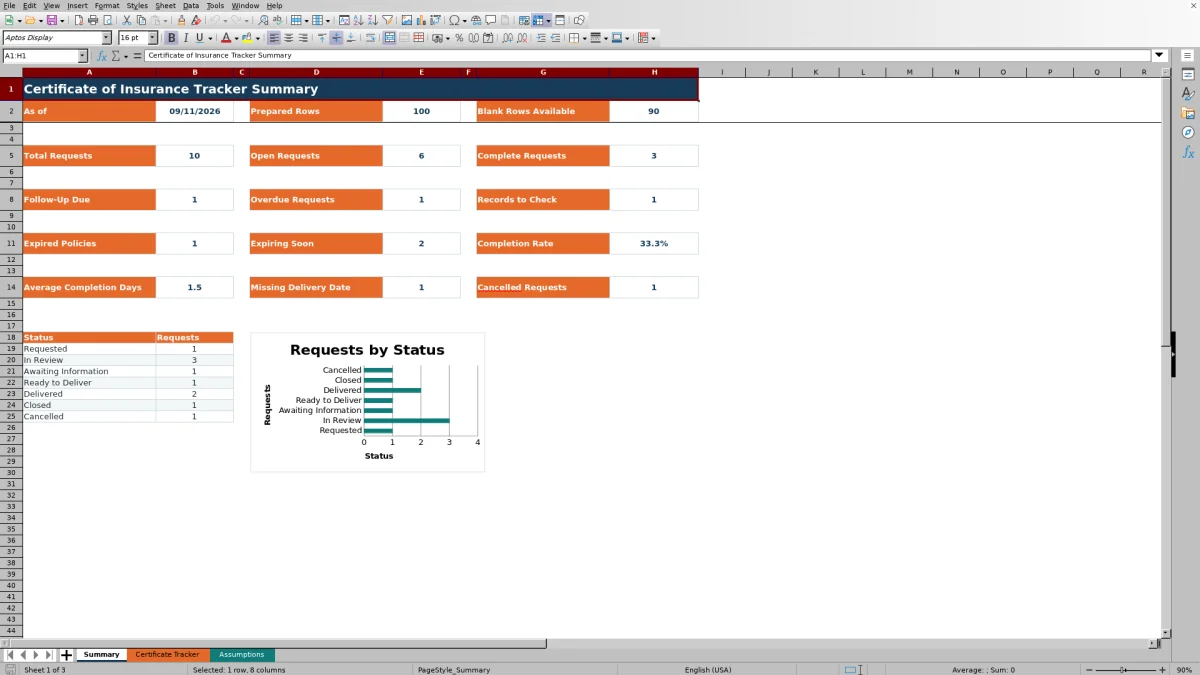
A separate Summary sheet presents request counts, follow-up and expiration indicators, completion measures, and a status chart. The Assumptions sheet controls operational settings and lists, while clear scope notes keep each alert positioned as a prompt for administrative review rather than verification of coverage, compliance, delivery, or official policy status.
How this workbook can help
- Keeps certificate request, holder, contact, delivery, follow-up, and expiration details in one organized register.
- Helps agency staff identify open work, overdue requests, upcoming expirations, incomplete records, and missing delivery dates.
- Provides consistent owner, status, and delivery-method choices through dropdown lists tied to the Assumptions sheet.
- Summarizes request volume, completion, turnaround, cancellations, and status distribution without requiring staff to build separate reports.
What is in the file
How to get started
1. Assess the current situation
Review the Summary and Assumptions sheets before entering requests. Confirm the 30-day expiration warning, three-day target turnaround, accepted date range, owner list, delivery methods, and status-to-workflow mapping for the agency's process.
2. Enter each request
Use one request per row on the Certificate Tracker sheet. Enter a unique Request ID, request date, insured or account, policy reference, certificate holder, contact, purpose, policy expiration, owner, and status. Add delivery and follow-up details when applicable.
3. Check the calculated result
Leave Days Open, Days to Expiration, Action Needed, and Workflow Class intact. These formula columns use the entered dates and status mapping to calculate timing and classify each populated record.
4. Interpret the prompts
Filter the tracker or review the Summary sheet for follow-up due, overdue, expired, expiring-soon, and incomplete records. Treat Action Needed as an administrative cue to inspect the source record, not as proof of coverage or compliance.
5. Make the next decision
After reviewing the agency record, decide whether to contact the insured or holder, correct an entry, record delivery, schedule follow-up, change the status, or close or cancel the request. Revisit the Summary sheet after updates to see the resulting workflow counts.
Situation: Certificate Requests Spread Across Agency Records
Certificate work can involve an insured, policy reference, certificate holder, contact, purpose, owner, delivery channel, and several dates. When those details sit in email, paper notes, or separate lists, staff may have difficulty seeing which requests remain open or need follow-up. This Excel tracker creates a single administrative register without representing that the workbook verifies coverage or compliance.
Action: Build a Consistent Request Record
Each request begins with a unique Request ID and Date Requested. Staff then enter the Insured / Account, Policy Reference, Certificate Holder, Holder Contact, Certificate Purpose, Policy Expiration, Owner, and Status. Delivery Method, Date Delivered, Follow-Up Date, and Notes complete the operational history. Dropdowns support consistent entries, and date validation limits the four date fields to the boundaries maintained on the Assumptions sheet.
Result: Interpreted Practical Example
The fictional request FIC-COI-260901 was entered with a September 1, 2026 request date, a September 2, 2026 delivery date, and a Delivered status. Delivered maps to the Complete workflow class, so Days Open calculates as one calendar day. The practical interpretation is that the administrative request was completed quickly and has a recorded delivery date; staff can retain the row as a finished activity while continuing to rely on reviewed agency records for official policy and delivery information.
Interpretation: Read the Summary and Formula Signals
The Summary sheet counts total, open, complete, overdue, follow-up-due, expired, expiring-soon, cancelled, and review-needed records. It also calculates completion rate, average completion days, and complete requests missing a delivery date. Because several calculations use TODAY(), timing and expiration indicators can change when Excel recalculates the workbook. Staff should interpret those figures as a current work queue based on entered data.
Common Entry Errors and Solutions
An empty required field, invalid date, or unmapped status can produce a Check record prompt. Review the request date, account, policy, holder, contact, purpose, expiration, owner, and status, then correct the missing or invalid entry from the agency record.
If a delivery or follow-up date is text or falls before the request date, replace it with the correct Excel date. If a Request ID is duplicated, assign a unique identifier. If a completed request lacks a delivery date, confirm whether delivery occurred and enter the reviewed date or correct the status. Dates outside January 1, 2020 through December 31, 2036 require either a corrected entry or a deliberate update to the accepted boundaries on the Assumptions sheet.
Comparison With Other Tracking Methods
The workbook operates as one method: a structured 100-row register, controlled entry lists, calculated review prompts, and a summary dashboard. The alternatives below may be more suitable when their stated conditions match the agency's workflow.
| Method | More suitable when | Operational consideration |
|---|---|---|
| This Excel workbook | More suitable when an agency needs a ready-to-use, locally managed request register with consistent fields, formulas, dropdowns, and summary metrics for up to 100 prepared rows. | Staff must maintain the entries and review prompts against agency records. |
| Paper or manual list | More suitable when request volume is very small, temporary, and handled by one person without calculated timing or shared reporting. | Manual lists do not automatically calculate days open, expiration timing, or dashboard totals. |
| Blank spreadsheet | More suitable when the agency needs custom fields, formulas, or capacity that differ materially from this workbook and has someone available to design and maintain them. | Controls, mappings, formulas, and reports must be created and tested separately. |
| CRM or agency management system | More suitable when certificate activity needs to connect directly to client, policy, task, document, user-permission, or audit records across the organization. | Configuration, licensing, permissions, and staff adoption may be required. |
| Carrier-provided report | More suitable when the immediate need is to review carrier-supplied policy information rather than manage the agency's complete certificate request workflow. | The report may not include holder contacts, agency follow-up dates, delivery details, or internal ownership. |
Next Decision: Turn Review Signals Into Staff Action
Use the Summary sheet to choose the next work queue, then filter the Certificate Tracker to inspect the related rows. A follow-up-due count can lead to holder or insured outreach; an overdue count can lead to owner reassignment or escalation; an expiration indicator can lead to review of the applicable agency record; and a missing-delivery count can lead to confirmation and entry of the delivery date. After staff update the source-based details and status, the formulas and Summary provide the next result to interpret.
Frequently asked questions
How many certificate requests can the Excel tracker hold?
The Certificate Tracker sheet contains 100 prepared entry rows, from row 6 through row 105. Formula columns are already populated across all 100 rows.
Which request statuses are included?
The included statuses are Requested, In Review, Awaiting Information, Ready to Deliver, Delivered, Closed, and Cancelled. The Assumptions sheet maps them to Open, Complete, or Excluded workflow classes.
Which calculations update automatically?
The workbook calculates Days Open, Days to Expiration, Action Needed, and Workflow Class for populated tracker rows. The Summary formulas also update request counts and performance measures, and TODAY-based results change when the workbook recalculates.
Can the owners, delivery methods, and status mappings be changed?
Yes. The existing list values and status mappings can be edited on the Assumptions sheet. Keep the referenced ranges complete and preserve a valid Open, Complete, or Excluded class for every listed status so the dropdowns and formulas continue to work as intended.
Does the workbook verify certificate delivery, coverage, or compliance?
No. Its alerts and workflow classes are administrative results based on entered dates and statuses. Agency staff should update the tracker from reviewed records and use the appropriate policy, carrier, certificate, and agency documentation for official verification.
Editorial responsibility

Maya ChenClient and policy workflows

Ethan BrooksWorkbook structure and formula QA