This Excel workbook organizes open servicing tasks by owner, due date, priority, status, and estimated effort. Agency operators can enter up to 100 administrative policy-service records and use the calculated alerts to identify overdue, approaching, unassigned, or incomplete work.
The XLSX also summarizes workload by five configurable owners, compares open hours with owner capacity, and flags allocations that may need review. Its fictional sample records and editable assumptions provide a planning structure without representing official policy status, coverage advice, or a service promise.
How this workbook can help
- Creates one structured view of administrative policy-servicing work, including ownership, deadlines, status, priority, and estimated effort.
- Helps agency operators identify past-due, due-soon, unassigned, and incomplete tasks before deciding what to address or reassign.
- Compares each listed owner's open hours with editable capacity so managers can review potentially overloaded allocations.
- Surfaces missing information, duplicate task IDs, date problems, and other record issues that could distort workload decisions.
What is in the file
How to get started
1. Configure the planning inputs
On the Assumptions sheet, replace the fictional names and capacity hours with the five owners to be monitored. Set the due-soon window and estimate review limit as internal planning assumptions, not customer commitments.
2. Enter the servicing queue
Use rows 5 through 104 on Service Tasks to record the task ID, policy or transaction reference, service task, received date, due date, owner, priority, status, estimated hours, and closed date. Use the supplied lists for service task, priority, and status.
3. Resolve record-level checks
Review Days to Due, Due Alert, Open Hours, and Review Note. Correct duplicate IDs, missing references, incomplete dates, date-order problems, invalid selections, and other flagged inputs before interpreting totals.
4. Review capacity and choose the next assignment
Open Summary to compare each owner's open tasks and hours with capacity. Consider past-due work first, then due-soon deadlines, priority, effort, and any unassigned tasks before keeping, reassigning, or escalating work.
Situation: A mixed policy-servicing queue
Administrative work can arrive as address changes, lienholder updates, document-copy requests, billing inquiries, cancellation requests, vehicle-information changes, endorsement paperwork, duplicate requests, reinstatement inquiries, or other administrative tasks. When these items are recorded in separate notes or inboxes, an agency operator may see individual deadlines without seeing the combined demand on each owner. This workbook creates a defined queue in which every populated task row can carry a responsible owner, due date, priority, status, and effort estimate.
Action: Record consistent inputs before allocating work
Enter a unique task ID and policy or transaction reference, select the service task, and provide received and due dates. Then assign an owner, priority, status, and estimated hours. The supplied validations limit priority to Low, Normal, High, or Urgent and status to Not Started, In Progress, Waiting, Completed, or Canceled. Consistent entries matter because the summary uses exact owner and status values when calculating workload.
The Assumptions sheet controls the due-soon window and stores the five owner-capacity values. These values are internal planning inputs. They should reflect the period and operating context the agency intends to review rather than a contractual turnaround time.
Result: Read the calculated workload outputs
For an open task with a valid due date, Days to Due subtracts TODAY() from the due date. The Due Alert then classifies the row as Past Due, Due Soon, or On Track according to that date and the configured window. Completed and Canceled rows are classified as Closed and contribute zero Open Hours.
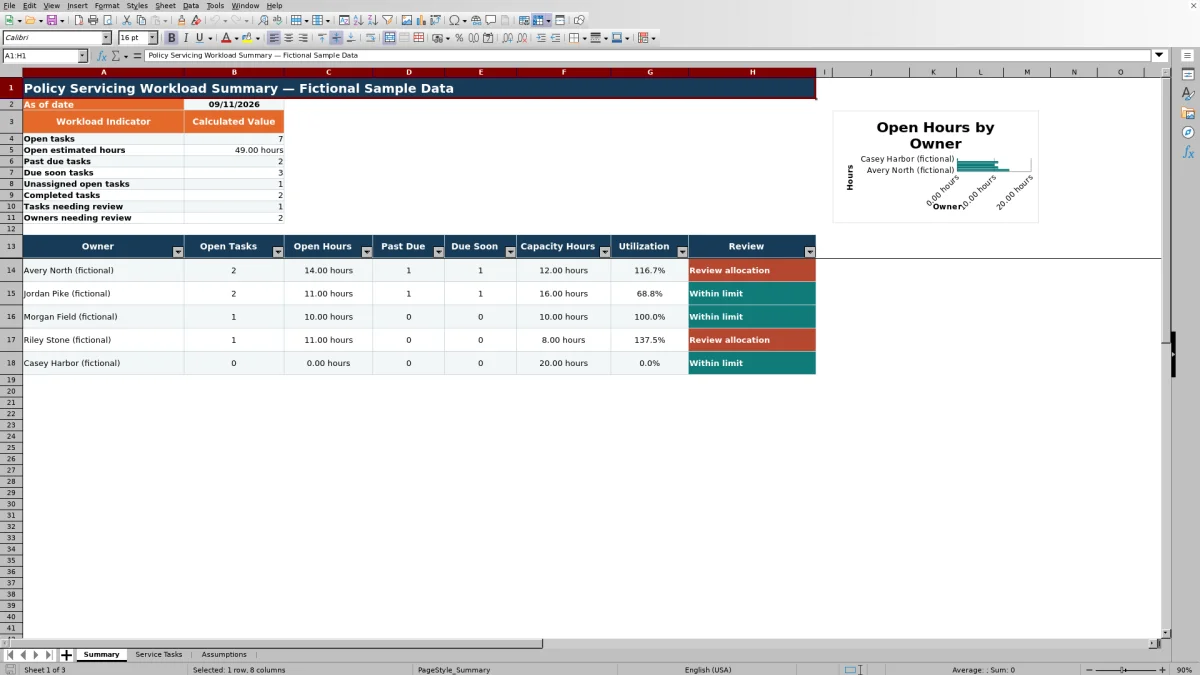
Summary counts open, past-due, due-soon, unassigned, completed, and review-flagged tasks. Its owner table reports open-task counts, open hours, past-due and due-soon counts, capacity, utilization, and a review status. A chart displays open hours for the five configured owner rows.
Practical example: From situation to next decision
Suppose Avery has 14 open hours against a 12-hour capacity, while Casey has 8 open hours against a 20-hour capacity. One four-hour Avery task is due soon. Situation: Avery's workload exceeds the entered capacity. Action: after confirming the task can appropriately move, reassign that four-hour item to Casey. Result: Avery falls to 10 hours, or about 83.3% utilization, and Casey rises to 12 hours, or 60% utilization. Interpretation: the capacity concern is reduced, but the reassignment does not change the task's approaching deadline or priority. Next decision: confirm Casey can meet that deadline and retain the assignment, or escalate the task if timing, authority, or service complexity makes the transfer unsuitable.
Interpretation: Turn indicators into an allocation decision
A capacity warning is an allocation signal, not an automatic assignment instruction. A manager should interpret it with the row's due alert, priority, estimated hours, current status, and review note. For example, a short urgent task may deserve attention before a longer normal-priority task even if both are due soon. A Waiting task may require follow-up rather than immediate processing.
The summary does not test licensing, authority, expertise, carrier access, employee availability, or customer impact. Those operational factors remain part of the agency's decision. The workbook supports a documented workload review, while the responsible operator decides whether to retain, reassign, clarify, or escalate each task.
Common errors and practical solutions
Error: an owner's work does not appear in the owner table. Solution: make the Owner entry on Service Tasks match the corresponding Assumptions name exactly; the owner-level formulas use exact text matching.
Error: a finished task still appears open. Solution: update Status to Completed or Canceled as appropriate. Entering only a Closed Date does not drive the open-hours calculation.
Error: Days to Due is blank or the row requests a date check. Solution: enter valid Excel dates, include both received and due dates, and verify that the due date is not earlier than the received date. Keep the due-soon assumption between 0 and 60 days.
Error: totals omit added rows or owners. Solution: remember that the prepared formulas cover task rows 5 through 104 and owner rows 7 through 11. Expanding those limits requires corresponding updates to formulas, validation, filters, formatting, and the chart.
Error: a row carries an unexpected review message. Solution: check for a duplicate task ID, missing policy reference, missing task type, missing priority or status, invalid estimated hours, and other required inputs shown across the row.
Comparison and the next planning decision
As one complete operational method, the workbook combines task capture, date alerts, open-hour calculations, data checks, and owner-capacity review. The alternatives below may be more suitable when their operating conditions apply.
| Method | What it organizes | More suitable when | Operational limitation |
|---|---|---|---|
| This Excel workbook | A defined queue of up to 100 tasks, calculated due conditions, open hours, review notes, and capacity for five owners. | More suitable when an agency needs a portable, formula-driven planning view for a bounded servicing queue. | Entries are maintained manually, and the file does not provide system integrations, permissions, or automated notifications. |
| Blank spreadsheet | Free-form task rows chosen by the user. | More suitable when the list is small, temporary, and does not require prepared formulas or consistent controls. | Alerts, validations, capacity calculations, and review rules must be designed and maintained separately. |
| CRM or agency management system | Centralized customer, policy, activity, and workflow records, depending on system configuration. | More suitable when the agency needs a system of record, user permissions, integrated communications, or workflow automation. | Configuration may not expose the same estimated-effort and owner-capacity view without customization or reporting work. |
| Carrier-provided report | Transactions and statuses available from a particular carrier. | More suitable when the immediate task is reconciling carrier-specific work or confirming carrier-side status. | It may not combine work across carriers or compare total servicing demand by agency owner. |
| Paper or manual list | A short locally maintained set of reminders. | More suitable when only a few same-day items require attention and digital access is unavailable. | Totals, deadline classifications, reassignment effects, and historical changes are difficult to recalculate or review. |
The next decision is whether the agency needs a self-contained planning layer or controls available in a connected operational system. If this workbook is used, assign responsibility for maintaining task status, assumptions, and owner names so its indicators remain useful.
Frequently asked questions
What does the workbook count as an open task?
A populated task row is counted as open when its status is neither Completed nor Canceled. Those two closed statuses also cause the calculated Open Hours value to become zero.
How does the workbook determine whether a task is due soon?
For an open task with a valid due date, the workbook compares that date with TODAY(). A date before today is Past Due, while a date from today through the configured due-soon window is Due Soon. A later date is On Track.
Does the Excel workbook assign tasks automatically?
No. It calculates workload, deadline, capacity, and review indicators, but an agency operator chooses whether to retain, reassign, clarify, or escalate a task.
Can the planner support more than 100 tasks or five owners?
The supplied XLSX prepares task rows 5 through 104 and five owner rows. It can be expanded, but formulas, validation, filters, conditional formatting, summary ranges, and the chart may also need to be extended.
Is this workbook an official policy record or coverage tool?
No. It is an internal administrative workload planner. Its fictional sample records should be replaced, and users should confirm official policy status, coverage, authority, and service requirements in the appropriate agency or carrier systems.
Editorial responsibility

Maya ChenClient and policy workflows

Ethan BrooksWorkbook structure and formula QA