This Insurance Event Lead Tracker is an Excel workbook for independent agencies that need to capture and progress event-acquired insurance leads. It organizes contact details, event sources, product interest, ownership, sales status, follow-up dates, estimated annual premium, and notes for up to 100 prospects.
The XLSX combines a lead register with configurable planning assumptions and a summary dashboard. Built-in formulas calculate probability, weighted pipeline, days since the event, and follow-up alerts, helping producers move from initial event contact to the next appropriate sales decision without treating pipeline estimates as quotes or expected outcomes.
How this workbook can help
- Keeps event contacts, sales stages, ownership, and follow-up details in one organized file.
- Helps producers identify overdue, upcoming, closed, and unscheduled follow-ups.
- Turns estimated annual premium and configurable stage probabilities into a practical pipeline view.
- Gives agency managers a concise summary of lead volume, status distribution, decision conversion, and follow-up workload.
What is in the file
How to get started
1. Configure the planning inputs
Open the Assumptions sheet and review the lead statuses, probabilities, owners, product interests, contact methods, and follow-up settings. Edit the orange input cells to reflect the agency's workflow while keeping each probability between 0% and 100%.
2. Enter each event lead
Use one row per prospect on the Leads sheet. Add a unique lead ID, event details, contact and organization information, product interest, owner, status, follow-up dates, estimated annual premium, and useful notes. Select standardized values from the available dropdown lists.
3. Progress the record after each contact
Update the status, last-contact date, next follow-up date, and notes after calls, emails, texts, appointments, or quote activity. Review the Follow-Up Alert field instead of typing over it because columns M through P contain formulas.
4. Review results and choose the next action
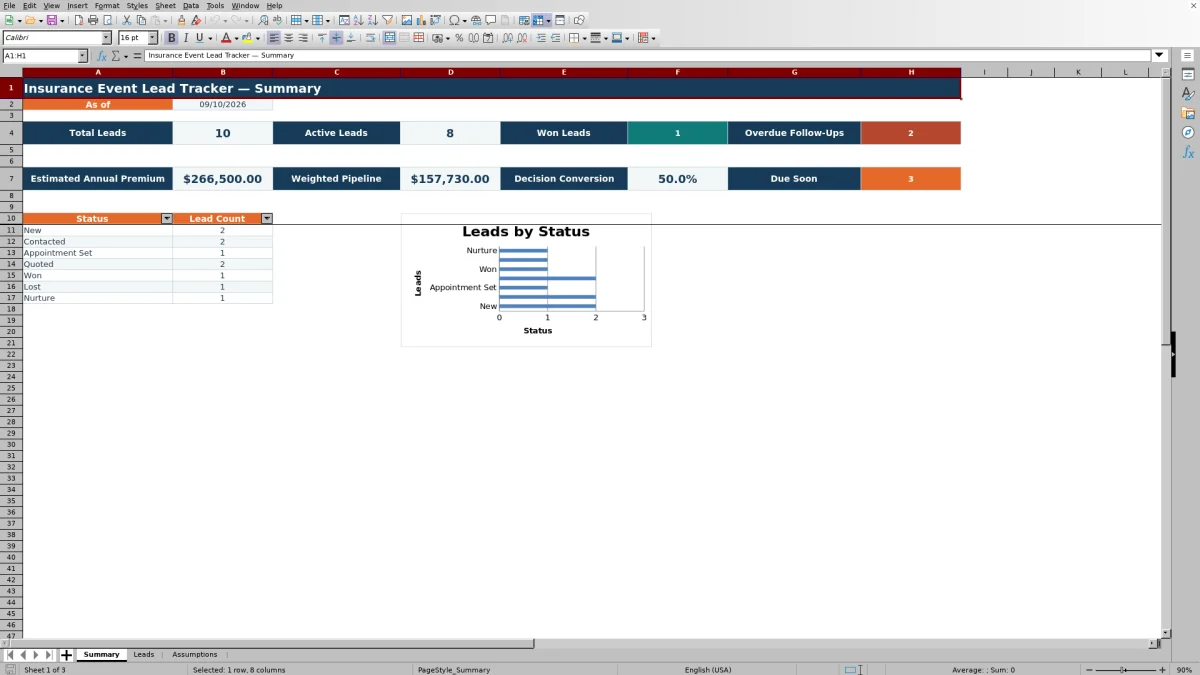
Use the Summary sheet to assess total, active, and won leads; overdue and due-soon follow-ups; estimated annual premium; weighted pipeline; decision conversion; and lead counts by status. Filter the Leads sheet by owner, status, event, or alert to assign the next round of outreach.
A Structured Workflow for Insurance Event Leads
Event prospects can lose context when business cards, notes, and follow-up dates are stored in separate places. This workbook treats lead capture and progression as one operating method: record the event source, assign an owner, select a product interest and status, schedule the next contact, document activity, and review the resulting pipeline on the Summary sheet. The Leads sheet supports 100 records and can be filtered across all 17 columns.
How Probability and Pipeline Calculations Work
Each lead status corresponds to an editable probability on the Assumptions sheet. The workbook looks up that percentage and multiplies it by estimated annual premium to calculate weighted pipeline. For example, the default probabilities are 10% for New, 20% for Contacted, 35% for Appointment Set, 60% for Quoted, 100% for Won, 0% for Lost, and 10% for Nurture. These percentages are internal planning assumptions, not insurance quotes, underwriting assessments, or predictions of a sale.
Practical Example: Interpreting Three Event Leads
Situation: an agency has three fictional prospects with estimated annual premiums of $1,800, $2,400, and $3,200. Action: the producer records their statuses as New, Contacted, and Appointment Set, which use the default probabilities of 10%, 20%, and 35%. Result: their individual weighted values are $180, $480, and $1,120, producing a combined estimated premium of $7,400 and a $1,780 weighted pipeline. Interpretation: the weighted amount is about 24.1% of the unweighted premium total because none of the leads has reached Quoted or Won; it is a prioritization aid rather than expected revenue. Next decision: review each lead's alert and next follow-up date, then prioritize the most time-sensitive record while considering that the Appointment Set lead currently contributes the largest modeled value.
Reading Follow-Up Alerts
The alert formula marks Won and Lost records as Closed. An open lead with no next follow-up date displays Set date. With the default settings, a follow-up earlier than today is Overdue, a date from today through the next seven days is Due soon, and a later date is Scheduled. Because the formula uses TODAY(), alert results update when Excel recalculates the workbook. Agencies can change the overdue grace period and due-soon window on the Assumptions sheet.
Common Entry Errors and Solutions
Error: a producer pastes over columns M through P, removing the probability or alert formulas. Solution: restore the formulas from an intact row and enter data only in the intended input columns. Error: a pasted status does not match the Assumptions list, so the probability lookup returns blank. Solution: select an approved status from the dropdown or correct the source list. Error: a lead remains unscheduled because Next Follow-Up is blank. Solution: enter a valid date within the configured horizon or close the record with Won or Lost when appropriate. Error: an estimated premium is rejected. Solution: enter a nonnegative amount within the maximum configured on the Assumptions sheet.
Comparison With Other Lead-Tracking Methods
The right method depends on lead volume, collaboration needs, reporting expectations, and available systems. The comparison below evaluates this workbook as a complete capture-to-review process against realistic external alternatives.
| Option | Operating method | More suitable when | Primary trade-off |
|---|---|---|---|
| Insurance Event Lead Tracker Excel workbook | Combines structured entry, configurable lists, calculated alerts, pipeline estimates, filters, summary metrics, and a status chart in one XLSX. | More suitable when an agency needs a transparent, file-based process for up to 100 event leads and can manage one shared workbook responsibly. | It does not provide native multi-user workflow automation, email synchronization, or activity logging outside the file. |
| Blank spreadsheet | Starts with an open grid that the agency designs and maintains manually. | More suitable when the agency needs unusual fields or a temporary list without predefined calculations. | Statuses, validation, formulas, alerts, and summary reporting must be created and tested by the user. |
| CRM or agency management system | Stores prospect activity in a centralized application that may include tasks, integrations, permissions, and automation. | More suitable when several producers need simultaneous access, automated communication history, larger lead volumes, or integration with established agency workflows. | Configuration, licensing, training, and data governance may require more time and resources. |
| Paper cards or manual notes | Captures contact details and reminders without formulas or centralized reporting. | More suitable when technology access at an event is limited and information will be transferred promptly afterward. | Records are harder to search, aggregate, assign, back up, and monitor for overdue follow-up. |
For many small agencies, the workbook can bridge the gap between informal notes and a full CRM. If lead volume or collaboration requirements outgrow the 100-row structure, a centralized system may become the more suitable operational choice.
Turning Summary Metrics Into the Next Decision
Use the Summary sheet as a review queue rather than as a passive report. Start with overdue and due-soon follow-ups, compare active and won lead counts, inspect estimated premium alongside weighted pipeline, and then review the status chart for stalled stages. Decision conversion divides Won leads by the total of Won and Lost leads, so a blank result means there are no completed decisions yet. After interpreting the metrics, filter the Leads sheet to assign specific outreach by owner, status, event, or alert.
Frequently asked questions
How many event leads can the Excel workbook track?
The Leads sheet provides 100 prepared rows, from row 4 through row 103. Each row includes the input fields and formulas needed for one prospect.
Can an agency change the lead statuses and probabilities?
Yes. The Assumptions sheet contains seven editable status and probability pairs. Status entries on the Leads sheet use that list, and the probability formula looks up the corresponding percentage for pipeline calculations.
What do the follow-up alert values mean?
Closed applies to Won or Lost leads, Set date identifies an open record without a next follow-up, Overdue identifies a date beyond the configured grace period, Due soon covers the configured upcoming window, and Scheduled applies to a later valid date.
Why is the decision conversion cell blank?
Decision conversion is calculated as Won leads divided by Won plus Lost leads. The cell remains blank when no records have reached either decision status, which avoids displaying a misleading percentage.
Can the fictional example records be replaced?
Yes. Replace the fictional lead details in the input columns with agency records and retain the formulas in columns M through P. Review privacy, access, and retention practices before storing real prospect information in a shared file.
Editorial responsibility

Maya ChenClient and policy workflows

Ethan BrooksWorkbook structure and formula QA