This insurance lead tracker Excel workbook is an XLSX register for recording each prospect’s lead ID, date added, name, product interest, source, owner, stage, contact activity, next action and outcome. Its structured Leads sheet provides 200 lead rows for an independent agency’s day-to-day sales administration.
Formula-driven status columns identify aging leads, overdue or upcoming actions, stale contacts, incomplete records, duplicate IDs and date or outcome issues. The Summary sheet then organizes pipeline information by stage, source and owner. The workbook supports administrative tracking; it does not send messages, access carrier systems, perform comparative rating, collect payments, bind coverage or synchronize with another system.
How this workbook can help
- Keep lead ownership, source, stage, next action and outcome information in one structured register.
- Prioritize open leads by reviewing overdue, due-soon, scheduled and missing-next-action statuses.
- Identify incomplete records, duplicate lead IDs, stale contacts and questionable date sequences before reviewing results.
- Use summary metrics to evaluate pipeline stages, source activity, closed-won results and owner workloads.
What is in the file
How to get started
1. Set the operating dates
Open the Lists sheet and update the report date, which drives all aging and follow-up formulas. Review the supplied stale-contact threshold of 14 days and due-soon window of 3 days, then adjust them if the agency follows a different cadence.
2. Enter and assign each lead
On the Leads sheet, give every record a unique Lead ID and enter the date added, lead name, product interest, source, owner and stage. Use the available dropdown values to keep entries consistent across the register.
3. Record activity and outcomes
For an open lead, enter both a next action date and a next action. Update the last contact date after contact occurs. For a completed lead, select Closed - Won or Closed - Lost as appropriate, record the outcome date and outcome, and enter a lost reason when relevant.
4. Review alerts and make the next decision
Check the calculated status and alert columns before using the Summary sheet. Correct missing information or inconsistent dates, address overdue work, and then review stage, source and owner results to decide which leads need attention next.
Start with the agency’s operating situation
Independent agencies often need a shared view of prospects before those prospects become placed business or are closed without placement. The workbook addresses that situation by keeping the source, owner, stage, next activity and eventual outcome on the same lead record. Because the formulas use an editable report date rather than the computer’s current date, the agency can review all aging and follow-up measures against one stated reporting point.
Create a consistent lead record
The practical action begins on the Leads sheet. Columns A through M and T hold entered information, while columns N through S calculate age, contact timing, follow-up status and alerts. Dropdowns reference lists for product interest, source, owner, stage, next action, outcome and lost reason. Date validation applies to the date added, last contact, next action and outcome fields, while Lead ID, lead name and notes have text-length controls. This structure reduces inconsistent labels without preventing agency staff from maintaining narrative notes.
Follow an interpreted practical example
Practical example: Situation: sample lead LT-0001 was added on August 31, 2026, is owned by Sales Rep A and has an Initial Call scheduled for September 8, while the workbook report date is September 9. Action: the owner reviews the formula-generated fields rather than relying only on the stage value New. Result: the lead age is nine days, the follow-up is overdue and no contact has been recorded. Interpretation: this indicates an unresolved administrative task, not that the prospect is qualified or likely to close. Next decision: Sales Rep A can complete or reschedule the initial call, record the resulting contact date and assign a new next action so the register reflects the current situation.
Interpret the summary as an operational result
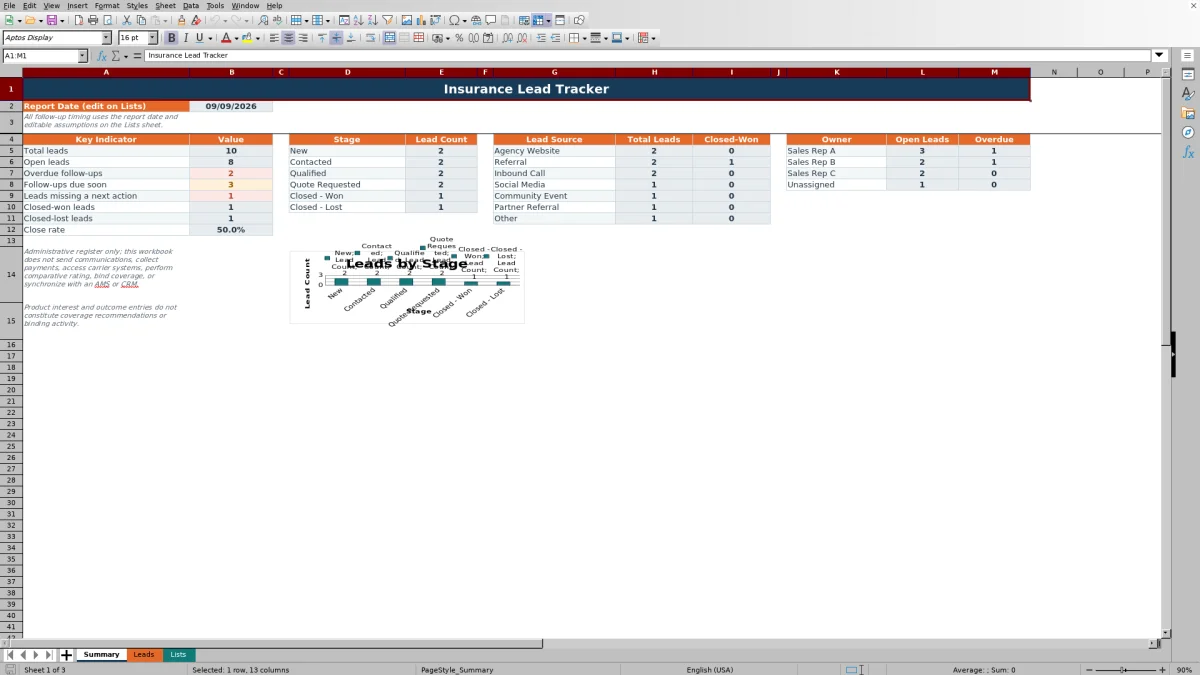
The Summary sheet converts individual records into counts for total leads, open leads, overdue follow-ups, actions due soon, missing next actions, closed-won leads, closed-lost leads and close rate. Separate blocks show lead counts by stage, total and closed-won records by source, and open or overdue records by owner. The stage chart provides a visual distribution of pipeline volume. These results help an agency spot workload and recordkeeping patterns, but they do not measure policy profitability, premium, coverage suitability or carrier eligibility because those fields and functions are not part of the workbook.
Resolve common errors before relying on totals
An open lead marked Overdue has a next action date earlier than the report date; complete or reschedule the activity and update the record. “Missing next action” means that either the next action date or action description is absent, so both fields should be completed. A required-fields alert calls for the missing date added, lead name, product interest, source, owner or stage to be supplied. A duplicate Lead ID requires assigning a unique identifier. When the date and outcome alert displays a message, correct the reported chronology or reconcile the stage and outcome information before interpreting the summary.
Comparison with a blank spreadsheet and agency software
The workbook is a complete operating method that moves from editable assumptions on Lists, through standardized entry and calculated checks on Leads, to management review on Summary. It is not a full CRM, agency management system or carrier platform, so the appropriate choice depends on workflow complexity and integration needs.
| Option | More suitable when | Operational trade-off |
|---|---|---|
| Insurance lead tracker Excel workbook | More suitable when an agency needs a local, structured register for up to 200 leads with consistent lists, formula-based follow-up statuses, alerts and summary reporting. | Provides a defined workflow but does not send communications, access carrier systems, collect payments, perform rating, bind coverage or synchronize externally. |
| Blank spreadsheet | More suitable when the fields and process are still being designed and users do not yet need standardized dropdowns, calculated statuses or a prepared dashboard. | Offers greater freedom to redesign the layout, but the agency must create and maintain its own formulas, validation rules and reporting method. |
| CRM or agency management system | More suitable when the agency requires multiuser workflow automation, communication history, permissions, integrations or system-based servicing beyond a standalone lead register. | Can support broader processes, but implementation, configuration and ongoing administration depend on the selected external system. |
The comparison is therefore about operating fit rather than superiority: use the workbook for the documented spreadsheet workflow, and evaluate an external system when automation or connected records are required.
Turn interpretation into the next decision
A practical review sequence is to resolve data alerts first, address overdue and due-soon actions second, and then examine stage, source and owner summaries. If one owner has several overdue open leads, the next decision may be to rebalance follow-up work. If a source has many leads but few Closed - Won records, the next decision may be to inspect the underlying records for stage, timing and activity patterns. Because the workbook records administrative outcomes rather than premium or coverage analysis, decisions about product recommendations, eligibility, quoting or binding remain outside its scope.
Frequently asked questions
What information does the insurance lead tracker record?
It records Lead ID, date added, lead name, product interest, lead source, owner, stage, last contact date, next action date, next action, outcome date, outcome, lost reason and notes. Additional columns calculate lead age, days since contact, follow-up status, contact status and record alerts.
How does the Excel workbook identify overdue follow-ups?
For an open lead with a next action date and action, the formula compares the next action date with the report date on the Lists sheet. A date before the report date is overdue, a date within the configured future window is due soon, and a later date is scheduled. Closed stages return a closed status.
Can the timing assumptions be changed?
Yes. The Lists sheet contains editable values for the report date, stale-contact days and due-soon days. The supplied values are September 9, 2026, 14 days and 3 days, respectively, and validation limits the two day settings to supported whole-number ranges.
How many lead records does the spreadsheet support?
The structured LeadTable provides 200 data rows, from row 2 through row 201. Formulas, dropdowns, date validation and text-length controls are prepared across those rows.
Does this workbook replace a CRM or agency management system?
No. It is a standalone administrative lead register. It does not send communications, synchronize with external systems, access carrier platforms, collect payments, perform comparative rating or bind coverage. A CRM or agency management system is more suitable when those connected capabilities are required.
Editorial responsibility

Maya ChenClient and policy workflows

Ethan BrooksWorkbook structure and formula QA