This insurance quote follow-up tracker is an Excel workbook for scheduling and recording agency contact after issued insurance quotes. It provides 100 prepared rows for quote IDs, prospects, quote dates, lines of business, premiums, owners, statuses, contact dates, follow-up dates, methods, decision dates, and notes.
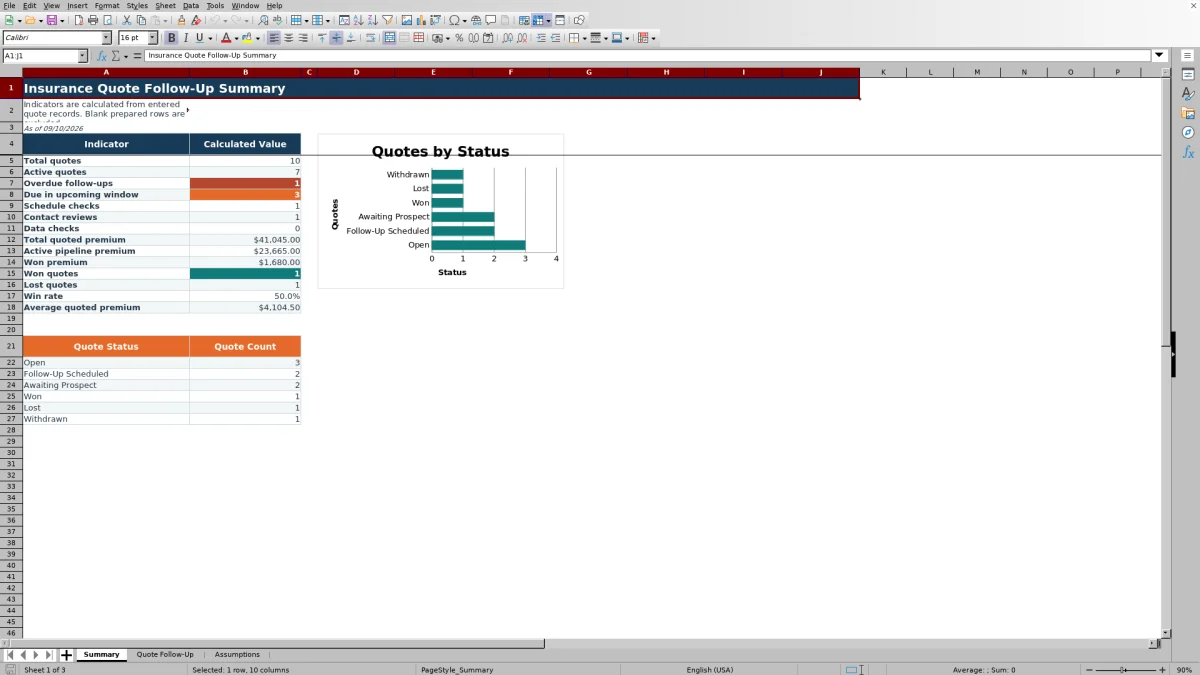
Formula columns calculate days open and classify follow-up timing, while the Summary sheet reports quote activity, premium, outcomes, and status counts. An Assumptions sheet contains editable choices and controls, and all included sample prospects, owners, identifiers, amounts, and activities are fictional.
How this workbook can help
- Keeps quote details, assigned owners, contact history, next actions, and outcome dates in one organized record.
- Surfaces overdue or upcoming follow-ups along with missing schedules, stale contacts, and selected data issues.
- Summarizes quoted premium, active pipeline premium, won premium, quote outcomes, and win rate for agency review.
- Supports consistent entry through validated status, business line, owner, method, date, and premium fields.
What is in the file
How to get started
1. Review the editable controls
Open the Assumptions sheet and review the status choices, lines of business, owners, follow-up methods, upcoming alert window, stale-contact threshold, earliest quote date, premium limit, and future scheduling limit.
2. Enter each issued quote
On the Quote Follow-Up sheet, use one row per quote. Enter a unique Quote ID and complete the prospect, quote date, line of business, quoted premium, owner, and current status.
3. Record and schedule contact
Enter the last contact date, next follow-up date, contact method, and notes. Keep the notes focused on what occurred, what the prospect requested, and what the assigned owner should do next.
4. Review alerts and close outcomes
Check the Days Open and Follow-Up Alert columns, then resolve timing or data issues. When a quote is won, lost, or withdrawn, update its status and enter the decision date before reviewing the resulting Summary measures.
A practical operating record after a quote is issued
The workbook functions as a human follow-up record rather than a quoting engine. Each row connects an issued quote to its owner, current status, most recent contact, next scheduled action, method, notes, and eventual decision date. That structure helps an agency operator move from a list of quoted accounts to a reviewable queue of specific follow-up responsibilities.
The prepared range runs from row 5 through row 104. Filters cover all 14 columns, and the headings remain visible while scrolling. The two calculated columns are already populated with formulas throughout the prepared range, so blank rows remain available without being counted as quote records on the Summary sheet.
How the alert logic directs attention
The Follow-Up Alert formula checks records in a defined order. A missing quote date produces Date Check, a missing status produces Status Check, and a closed status without a decision date produces Decision Date Check. For an active quote, a missing next follow-up produces Schedule Check, a past follow-up date produces Overdue, and a date inside the editable upcoming window produces Due Soon.
Contact Review can identify an absent or stale last-contact date after higher-priority scheduling checks have been evaluated. Because the formulas use TODAY(), alert results can change when the XLSX is opened on a different date. The Upcoming alert days and Stale contact days controls on the Assumptions sheet determine the relevant timing windows.
Interpreted practical example: a missed follow-up
Situation: fictional quote FQ-26-002 has a quote date of August 31, 2026, a Follow-Up Scheduled status, a last contact date of September 6, and a next follow-up date of September 9. Action: suppose the assigned owner reviews the workbook on September 10, 2026. Result: Days Open calculates as 10, and the alert becomes Overdue because the scheduled date is earlier than the review date.
Interpretation: the record does not establish that the prospect was ignored; it shows that the scheduled date passed without a later date or closed outcome being recorded. Next decision: the owner should verify whether contact occurred, update Last Contact and Next Follow-Up if the quote remains active, or change the status and enter a Decision Date if the opportunity concluded.
Common entry errors and solutions
Error: the same Quote ID is entered twice. Solution: assign a unique identifier or clear the duplicate entry; the Quote ID range uses a custom uniqueness rule.
Error: Quote Date, Last Contact, or Decision Date contains a future date, or a contact date precedes the quote date. Solution: correct the date to reflect the actual chronology. Quote Date is also limited by the editable earliest allowed date.
Error: Next Follow-Up precedes Quote Date or exceeds the permitted future scheduling range. Solution: enter a date within the accepted range or revise the Maximum future scheduling days control when agency policy supports a different limit.
Error: a Won, Lost, or Withdrawn record displays Decision Date Check. Solution: enter the actual decision date between the quote date and the current date. If the outcome is not final, correct the status instead.
Error: Quoted Premium exceeds the configured maximum. Solution: confirm the amount for accuracy or adjust the validated premium control on the Assumptions sheet within its permitted range.
Comparison with paper, blank spreadsheets, CRMs, and carrier reports
This comparison treats the complete workbook—quote register, scheduling fields, formulas, Summary, and editable Assumptions—as one operational method. The appropriate option depends on record volume, collaboration needs, system access, and the level of automation required.
| Option | More suitable when | Primary trade-off |
|---|---|---|
| This Excel workbook | More suitable when an agency needs a structured, locally controlled follow-up register with date alerts, validated choices, premium measures, and status reporting. | Users must maintain the rows manually, and it does not provide automated email, telephony, permissions, or system integrations. |
| Paper or manual list | More suitable when the quote volume is very small and one person needs a temporary visual reminder without calculated reporting. | Dates, ownership, premium totals, and outcomes are harder to filter, update, and summarize consistently. |
| Blank spreadsheet | More suitable when the agency requires an entirely custom layout and has staff available to build and maintain formulas, validation, and reporting. | Initial setup and quality controls depend on the person designing the file. |
| CRM or agency management system | More suitable when multiple users need centralized activity history, permissions, automated tasks, communication logging, or integrations with broader customer records. | Configuration, licensing, training, and data governance may require additional resources. |
| Carrier-provided report | More suitable when the review is limited to quote data supplied by one carrier and no agency-wide follow-up log is required. | It may not combine activity across carriers or capture the agency's complete contact notes and scheduling decisions. |
An independent agency can also use the workbook as a defined interim process while evaluating whether its volume and collaboration requirements justify migration to a centralized system.
Reading pipeline and outcome measures
The Summary sheet separates activity from outcomes. Active quotes include Open, Follow-Up Scheduled, and Awaiting Prospect records. Active pipeline premium sums quoted premium for those same statuses, while won premium includes only records marked Won.
Win rate divides Won quotes by the combined number of Won and Lost quotes; Withdrawn records are not part of that calculation. Average quoted premium divides total quoted premium by the number of populated Quote IDs. Schedule checks, contact reviews, and data checks provide separate counts so the operator can distinguish follow-up workload from record-quality work.
The status chart displays counts for Open, Follow-Up Scheduled, Awaiting Prospect, Won, Lost, and Withdrawn. Read these figures as an administrative view of entered records, not as a forecast or a substitute for carrier or accounting records.
Turning the tracker into a review cadence
For a daily review, filter Follow-Up Alert for Overdue, Due Soon, Schedule Check, and Contact Review, then work through records by owner and next follow-up date. Record the contact result and schedule the next action while the details are current.
For a weekly review, use the Summary sheet to compare active quote volume, active pipeline premium, won and lost outcomes, and outstanding checks. If the same issue appears repeatedly, review the Assumptions values or clarify the agency's entry procedure rather than clearing alerts without correcting the underlying record.
For the next decision, determine whether each active quote needs immediate contact, a later scheduled date, continued waiting on the prospect, or a closed status. This keeps the workbook focused on actionable follow-up instead of allowing it to become a static quote archive.
Frequently asked questions
What is the Insurance Quote Follow-Up Tracker for?
It is an Excel workbook for scheduling and documenting human follow-up after insurance quotes have been issued. It includes 100 prepared rows and tracks quote details, ownership, contact dates, next actions, notes, and outcomes.
How does the workbook determine a follow-up alert?
The formula evaluates the quote date, status, decision date, next follow-up date, last contact date, and editable timing controls. Depending on the record, it can return Date Check, Status Check, Decision Date Check, Schedule Check, Overdue, Due Soon, Contact Review, or Closed.
Can the status, owner, business line, and method choices be changed?
Yes. The Assumptions sheet contains the populated lists used by the Quote Follow-Up validation rules. Edit the existing choices within those listed ranges so the corresponding dropdowns continue to use the configured source cells.
What does the Summary sheet calculate?
It calculates total and active quotes, alert and review counts, total quoted premium, active pipeline premium, won premium, won and lost counts, win rate, average quoted premium, and counts for each supported status. It also includes a chart based on the six status counts.
Does this workbook replace a CRM or agency management system?
No. It provides a structured spreadsheet process for quote follow-up, but it does not include centralized permissions, automated communications, telephony, or system integrations. A CRM or agency management system is more suitable when those capabilities are operational requirements.
Editorial responsibility

Maya ChenClient and policy workflows

Ethan BrooksWorkbook structure and formula QA