The Insurance Conversion Rate Calculator is an Excel workbook for recording lead milestones and calculating lead-to-quote and quote-to-bind rates. It uses Lead Date to select records for analysis, then recognizes completed Quote Date and Bind Date entries when calculating conversions.
Independent insurance agency operators can use the XLSX to monitor 120 lead rows, compare results across six configurable lead sources, measure turnaround time, and identify records that need follow-up or data review. It is an administrative sales-tracking resource and does not provide coverage, pricing, service, or compliance recommendations.
How this workbook can help
- Shows how many in-period leads reached the quote and bind stages.
- Separates lead-to-quote performance from quote-to-bind performance so agencies can locate funnel friction.
- Provides source-level results for comparing referral, website, event, call, partner, and walk-in activity.
- Surfaces open work and data issues that agency staff can review before making operational decisions.
What is in the file
How to get started
1. Set the reporting window
Open Assumptions and enter the start and end dates for the analysis period. Review the earliest and latest allowed dates, then adjust the two follow-up thresholds if the agency uses different review intervals.
2. Confirm the operating lists
Review the lead sources, product lines, owners, and dispositions on Assumptions. These values supply the dropdown lists in Lead Log, so make any appropriate list changes before entering records.
3. Record each lead and milestone
Enter one unique Lead ID per row along with Lead Date, prospect alias, source, product line, owner, and disposition. Add Quote Date and Bind Date only when those milestones are completed; the disposition by itself does not cause a lead to count as quoted or bound.
4. Review and decide
Resolve messages in the Data Check column, then open Summary to evaluate totals, conversion percentages, turnaround times, open work, and source-level results. Use the stage with the weaker rate or the largest unresolved workload to choose the next coaching, follow-up, or data-cleanup action.
Situation: Understand where insurance leads stop progressing
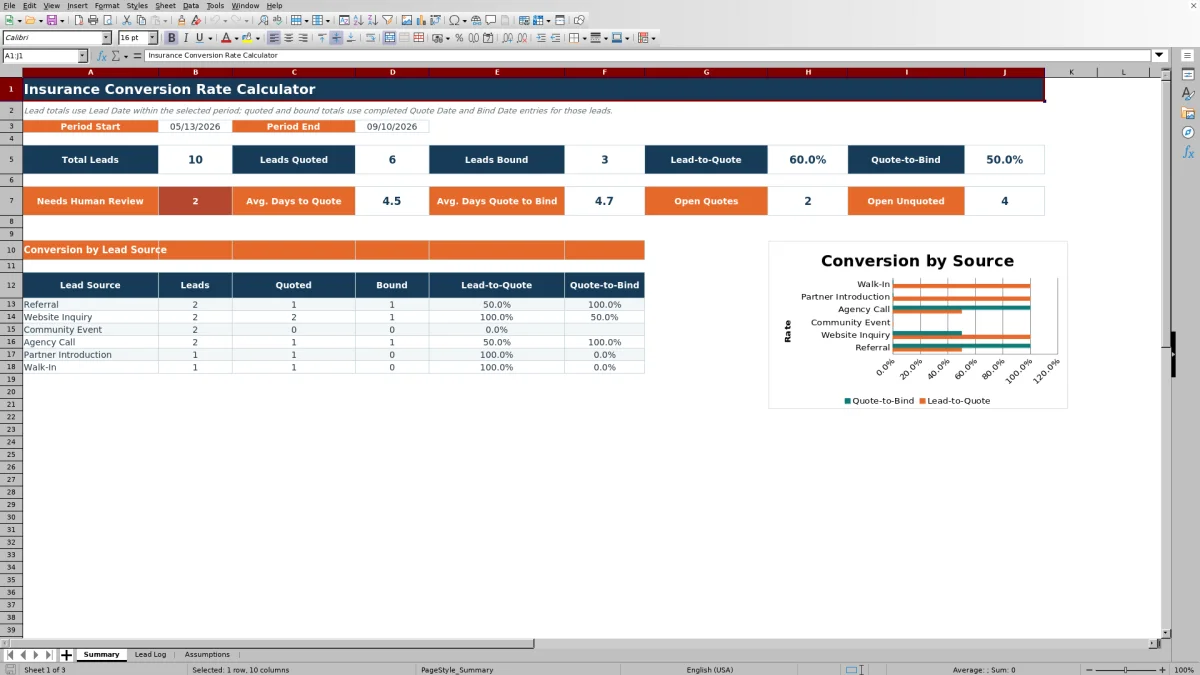
A single overall sales percentage can hide two different operating situations. An agency may be slow to turn inquiries into quotes, or it may produce many quotes that do not become bound business. This insurance conversion rate calculator separates those stages while also showing average days to quote, average days from quote to bind, open quoted leads, open unquoted leads, and records requiring review.
Action: Record the dates that drive each calculation
The selected population consists of records with a populated Lead ID and a Lead Date between Analysis Start and Analysis End, inclusive. A lead counts as quoted when it has a completed Quote Date, and it counts as bound when it has a completed Bind Date. Lead-to-quote equals quoted leads divided by total leads, while quote-to-bind equals bound leads divided by quoted leads. If a denominator is unavailable, the workbook returns a blank rather than displaying a calculation error.
Result: Read the Summary as an operating funnel
Start with Total Leads, Leads Quoted, and Leads Bound to see the volume at each stage. Then read Lead-to-Quote and Quote-to-Bind separately because each answers a different question. Average Days to Quote indicates how long recorded leads took to reach a quote, while Average Days Quote to Bind indicates the post-quote interval. Open Unquoted and Open Quotes identify active workload, excluding records marked Not Proceeding under the applicable summary formulas.
Practical example: Interpret two conversion rates together
Suppose an analysis period contains 40 leads, 25 have Quote Dates, and 10 have Bind Dates. Lead-to-quote is 25 divided by 40, or 62.5%, while quote-to-bind is 10 divided by 25, or 40.0%. The interpretation is not simply that 10 sales were completed: the post-quote stage converted at a lower rate than the pre-quote stage. The next decision could be to review open quotes by owner and age, check whether follow-up is documented, and then compare lead sources to see whether the pattern is concentrated in a particular channel.
Interpretation: Compare lead sources without confusing volume and efficiency
The source section reports leads, quoted leads, bound leads, and both conversion rates for each of the six source values configured on Assumptions. A source with many leads may still have a modest lead-to-quote rate, while a lower-volume source may move a larger share of quotes to bind. Read counts alongside percentages: small denominators can produce volatile rates, and a high percentage from only a few leads should not automatically determine budget or staffing decisions.
Errors and solutions: Resolve data issues before acting
A duplicate Lead ID can count the same identifier more than once, so assign a distinct ID to each record. If a date is rejected, confirm that it is a valid Excel date within the earliest and latest allowed dates. If source, product line, owner, or disposition is missing, select an approved dropdown value or update the corresponding Assumptions list. If a record is marked Quoted or Bound but does not appear in the conversion total, enter the applicable milestone date; status text does not replace the date. Treat every Data Check message as a prompt for human review, correct the source record, and refresh the interpretation before choosing an operational response.
Comparison and next decision: Choose the appropriate tracking method
The complete workbook combines a controlled input log, milestone calculations, review prompts, assumptions, summary measures, source analysis, and a chart. The comparison below distinguishes that operating method from common external alternatives.
| Method | More suitable when | Operational trade-off |
|---|---|---|
| Insurance Conversion Rate Calculator Excel workbook | More suitable when an agency needs a repeatable local process for up to 120 leads, controlled lists, two-stage conversion rates, review prompts, and source-level analysis. | Staff must enter and maintain milestone data, and the fixed log is not designed as a multiuser production database. |
| Blank spreadsheet | More suitable when the task is a one-time custom analysis and the user is prepared to build and test formulas, validations, checks, and summaries. | Greater layout flexibility comes with more setup work and a higher risk of inconsistent formulas or categories. |
| CRM or agency management system | More suitable when multiple users need automated workflows, permissions, integrations, activity history, and substantially higher record volume. | Implementation, configuration, licensing, and ongoing administration may be greater than a focused workbook requires. |
| Carrier-provided report | More suitable when the decision concerns activity reported by that carrier and no cross-carrier or agency-wide lead view is needed. | Definitions, available fields, and source coverage may not match the agency's complete funnel. |
| Paper or manual tally | More suitable when staff need temporary offline capture and the number of records is very small. | Conversion calculations, aging analysis, validation, and source comparisons require manual work. |
The next decision should reflect scale and workflow. Continue with the workbook when structured local tracking meets the need; evaluate a CRM or agency management system when collaboration, automation, integrations, or record volume exceed the workbook's operating range.
Frequently asked questions
How does the Excel workbook calculate lead-to-quote and quote-to-bind rates?
Lead-to-quote divides in-period leads with a numeric Quote Date by total in-period leads. Quote-to-bind divides in-period leads with a numeric Bind Date by those with a numeric Quote Date. The formulas return a blank when a rate cannot be calculated.
Which date determines whether a lead is included in the selected period?
Lead Date determines inclusion. The workbook counts populated Lead IDs whose Lead Date falls between the Analysis Start and Analysis End dates, inclusive, and then checks Quote Date and Bind Date for those leads.
Does changing the disposition to Quoted or Bound update the conversion totals?
No. Quote Date and Bind Date drive the quoted and bound totals. Disposition supports pipeline context, including exclusion of Not Proceeding records from applicable open-work counts, but it does not replace a milestone date.
How many lead records can the workbook hold?
Lead Log provides 120 working rows, from row 5 through row 124. The calculated Days to Quote, Days Quote to Bind, and Data Check formulas are already present across those rows.
Can an agency change the dropdown choices and review thresholds?
Yes. Assumptions contains editable lists for six lead sources, five product lines, four owners, and five dispositions, as well as the analysis dates, allowed date boundaries, and review thresholds for unquoted leads and open quotes.
Editorial responsibility

Maya ChenClient and policy workflows

Ethan BrooksWorkbook structure and formula QA